
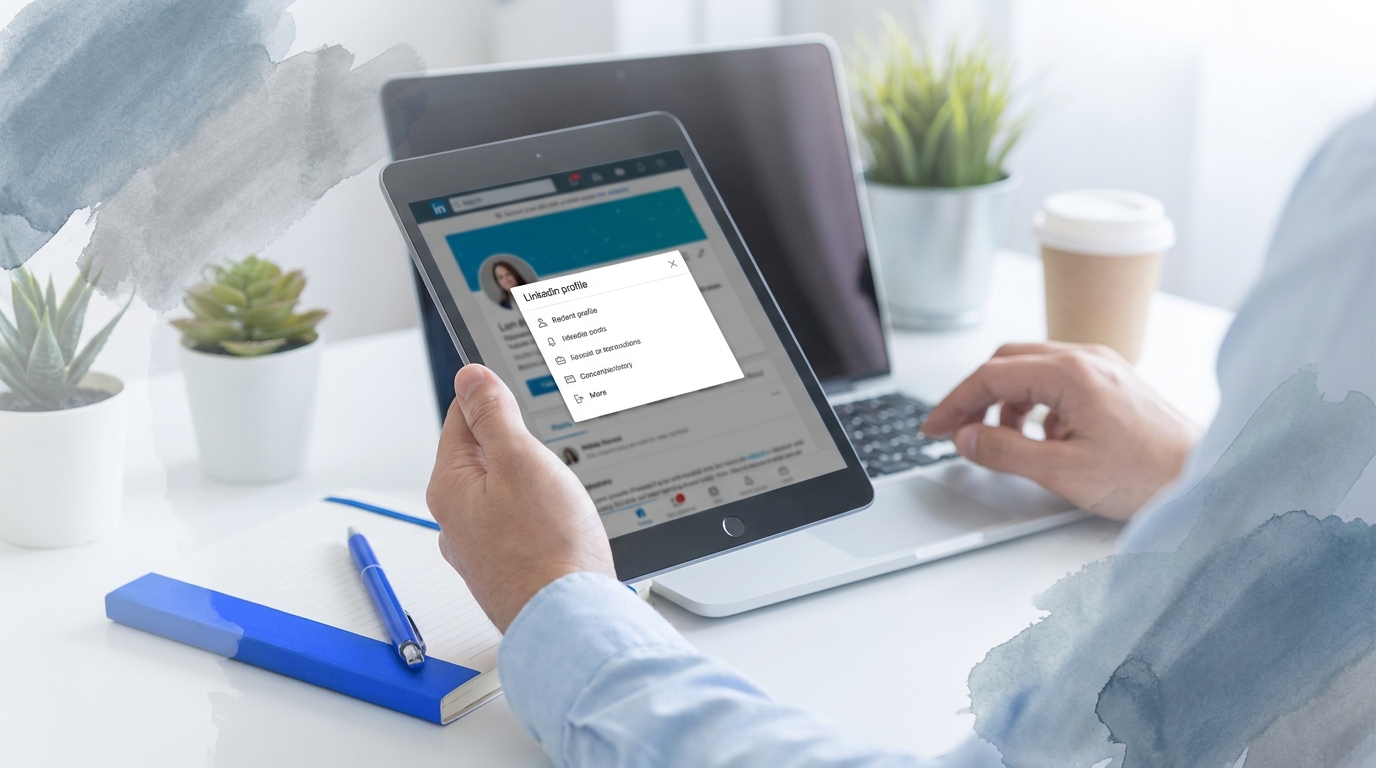
TL;DR: To change email on LinkedIn, click your profile icon, select Settings & Privacy, navigate to Account preferences, then click Email addresses. Add your new email, verify it through the confirmation link sent to your inbox, then set it as primary and optionally remove your old email address.
Frequently Asked Questions
How do I change my email address on LinkedIn?
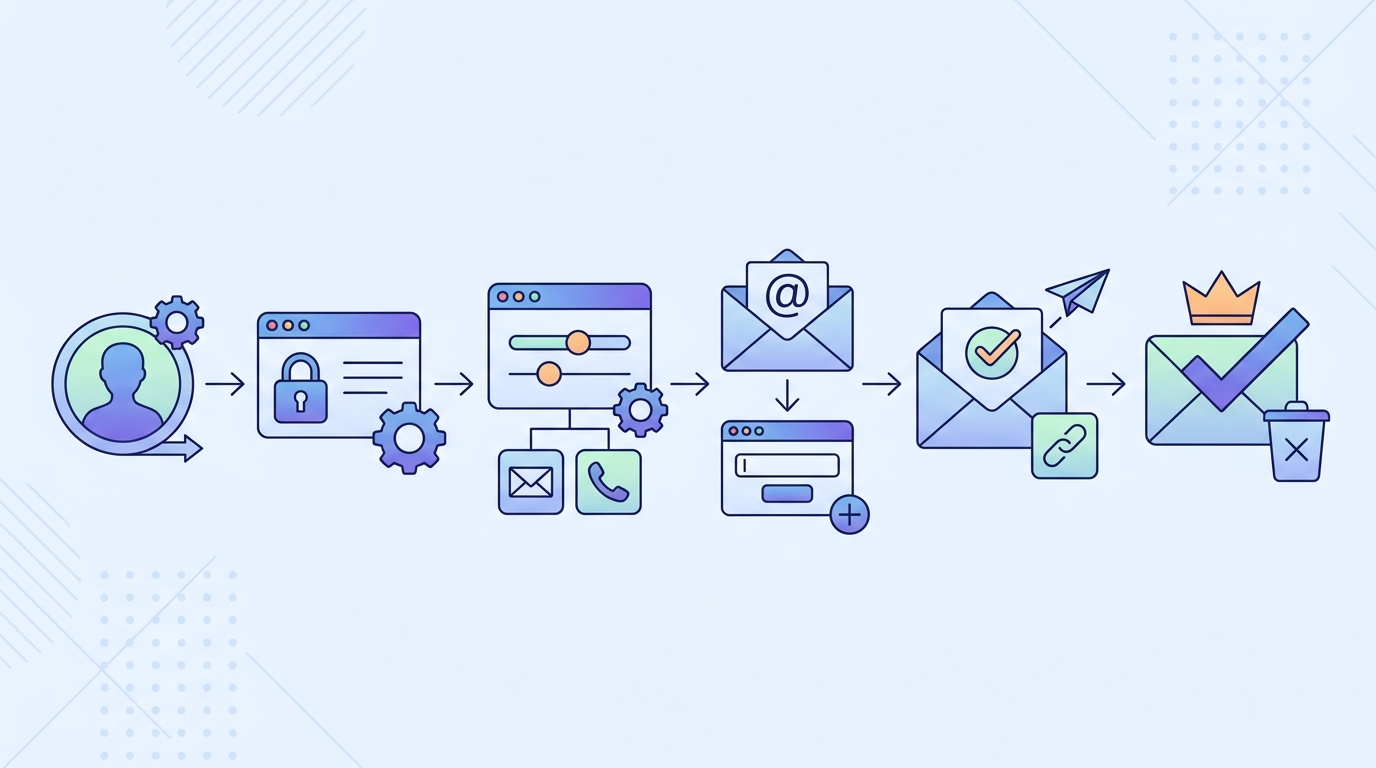
To change your email on LinkedIn, click your profile icon in the top right, select ‘Settings & Privacy’, then go to ‘Account preferences’. Click ‘Email addresses’, then ‘Add email address’ to enter your new email. LinkedIn will send a verification link. Once verified, you can set it as primary and remove your old email address.
Can I change my LinkedIn email without losing my account?
Yes, you can safely change your LinkedIn email without losing your account, connections, or profile data. LinkedIn allows you to add a new email address while keeping your old one active temporarily. Once you verify the new email, you can set it as primary and remove the old one, ensuring a smooth transition without any data loss.
How long does it take to verify a new email on LinkedIn?
LinkedIn email verification is typically instant. After adding a new email address, LinkedIn sends a verification link immediately to that email. The verification link usually arrives within 1-2 minutes. Once you click the link, your email is verified instantly. If you don’t receive it, check your spam folder or request a new verification email.
Why can’t I change my email on LinkedIn?
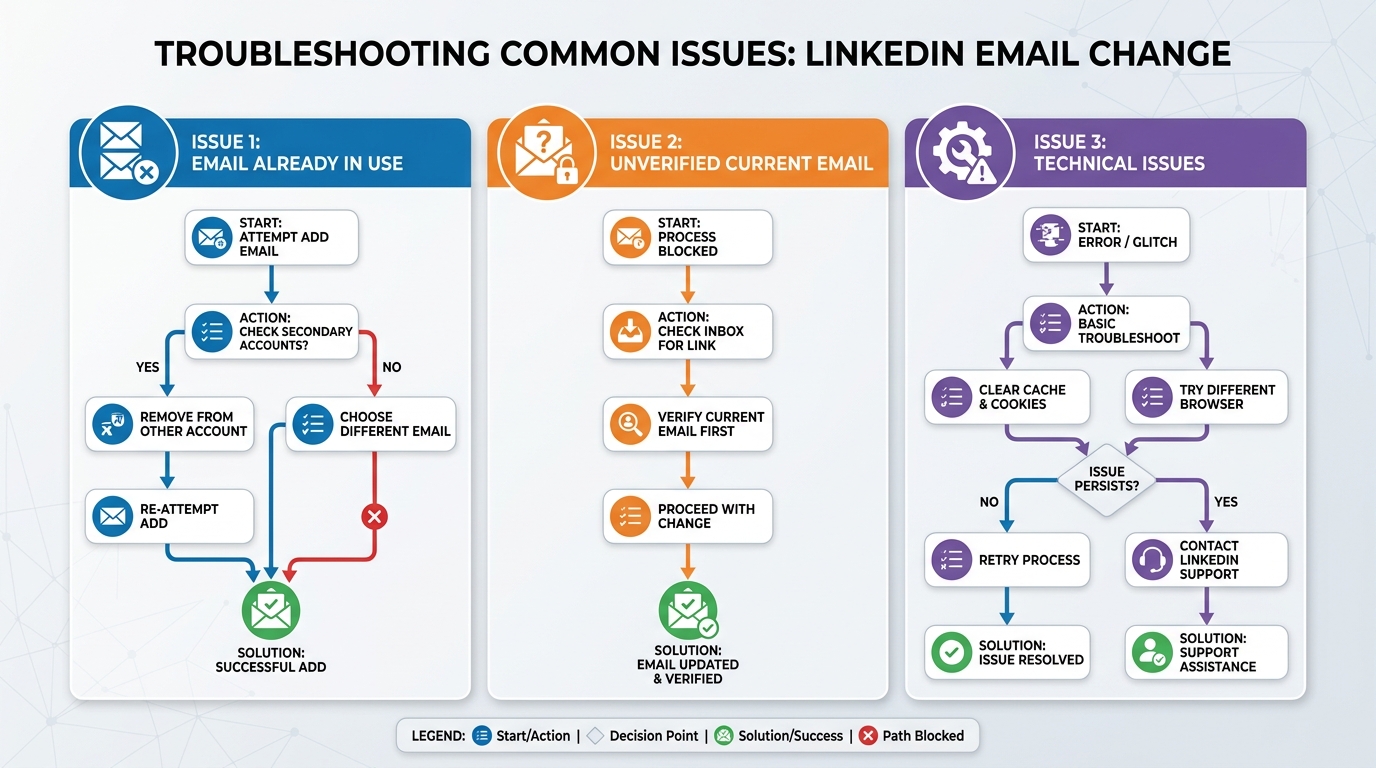
Common reasons you can’t change your LinkedIn email include: the new email is already associated with another LinkedIn account, you haven’t verified your current email, or there’s a temporary technical issue. Ensure you’re using a unique email address not registered on LinkedIn. If problems persist, try logging out and back in, or contact LinkedIn support.
Can I use the same email for multiple LinkedIn accounts?
No, LinkedIn does not allow the same email address to be associated with multiple accounts. Each LinkedIn account requires a unique email address. If you try to add an email already in use, LinkedIn will notify you it’s unavailable. To manage multiple professional profiles, you’ll need separate email addresses for each account.
What happens to my LinkedIn messages when I change my email?
Your LinkedIn messages, connections, and all account data remain completely intact when you change your email address. Changing your email only updates your login credentials and notification preferences. All conversations, connection requests, posts, and profile information stay exactly the same. Your network won’t be notified of the email change, maintaining your privacy.
How do I update my LinkedIn email for cold email campaigns?
Update your LinkedIn email by going to Settings & Privacy, then Account preferences. Add your professional cold email campaign address, verify it, and set it as primary. This ensures LinkedIn notifications go to your outreach management inbox. Using a dedicated email for LinkedIn helps you track engagement, manage responses, and integrate with CRM tools for better lead generation.
Can I change my LinkedIn email from my mobile app?
Yes, you can change your LinkedIn email from the mobile app. Tap your profile photo, select ‘Settings’, then ‘Account preferences’, and choose ‘Email addresses’. Add your new email, verify it through the link sent to your inbox, then set it as primary. The mobile process is identical to desktop, making it convenient to update your email anywhere.
Introduction: Why Changing Your LinkedIn Email Matters
📧 Managing your professional presence on LinkedIn starts with keeping your contact information current. Understanding how to change email on LinkedIn is essential for maintaining seamless communication with your network, receiving important notifications, and ensuring you never miss career opportunities.
Whether you’ve switched jobs, upgraded from a personal to a professional email address, or simply want to use a different email provider, updating your LinkedIn email is a straightforward process. This comprehensive guide walks you through every step, troubleshooting common issues, and best practices for managing your professional email communications.
For professionals managing multiple email accounts across platforms like email with att net, my emails yahoo, or those who need to log into hotmail email, keeping your LinkedIn profile synchronized with your primary professional email ensures you stay connected and responsive to opportunities.
Understanding LinkedIn Email Settings
💼 LinkedIn uses your email address for multiple critical functions beyond just logging in. Your primary email serves as your unique identifier, notification hub, and recovery method for your account.
What Your LinkedIn Email Controls
- Account notifications: Job alerts, connection requests, and message notifications
- Security communications: Login alerts and password reset requests
- Marketing updates: LinkedIn news, product updates, and promotional content
- Account recovery: Your primary method for regaining access if locked out
- Privacy settings: Who can find you through email search
Many professionals maintain multiple email addresses for different purposes. Sales teams using crm inside sales tools often separate their LinkedIn communications from their cold outreach campaigns to maintain organization and deliverability.
Primary vs. Secondary Email Addresses
LinkedIn allows you to add multiple email addresses to your account, but only one can be designated as primary. Your primary email receives all notifications and serves as your login credential.
Secondary emails provide backup access options and allow people to find you through different email addresses. This flexibility is particularly valuable if you’re transitioning between email providers or managing both personal and professional addresses.
How to Change Email on LinkedIn: Step-by-Step Guide
🔧 Changing your LinkedIn email requires accessing your account settings and following a verification process. Here’s the complete walkthrough for both desktop and mobile platforms.
Desktop Method (Web Browser)
- Sign in to LinkedIn: Navigate to linkedin.com and log in with your current credentials
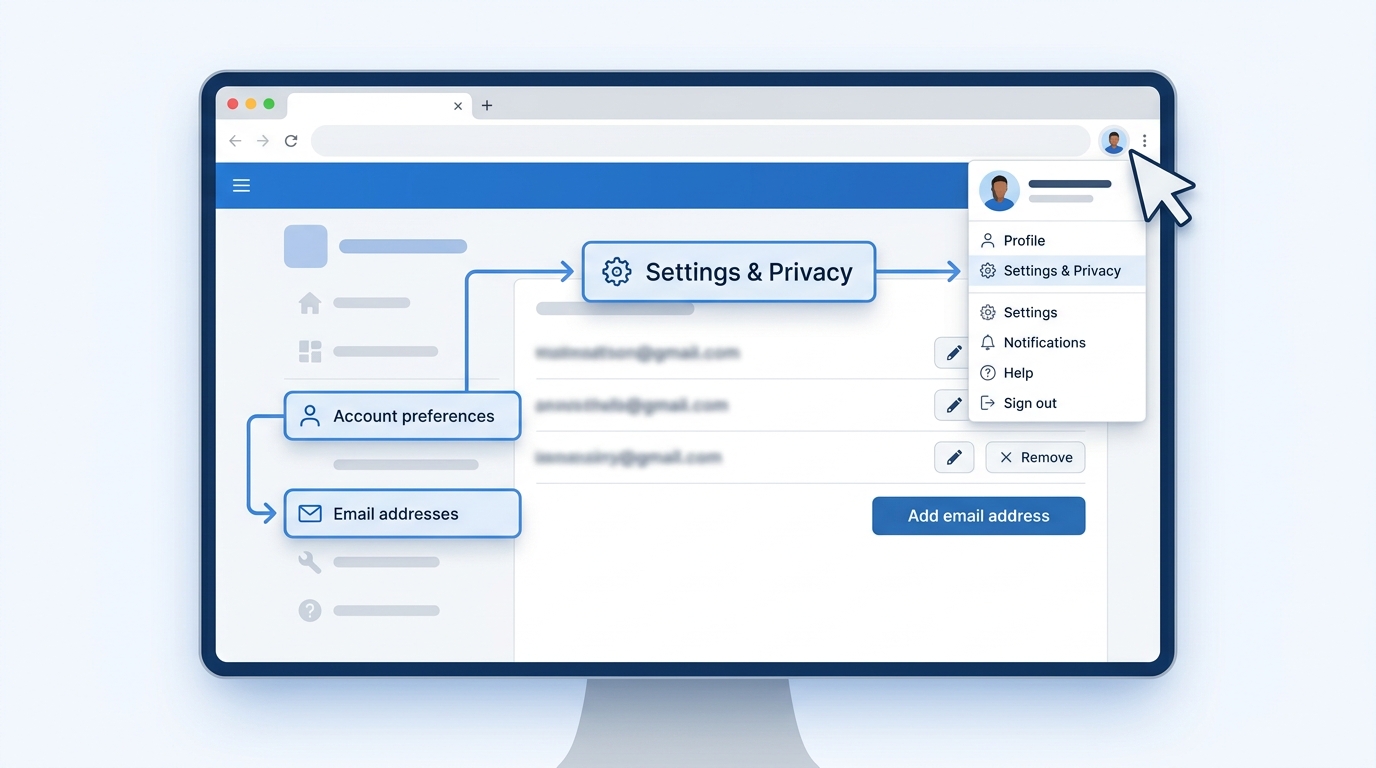
- Access Settings: Click your profile picture in the top right corner, then select “Settings & Privacy” from the dropdown menu
- Navigate to Account: In the left sidebar, click on the “Account” tab
- Find Email Addresses: Under “Account management,” locate “Email addresses” and click “Change”
- Add New Email: Click “Add email address” and enter your new email
- Verify Email: Check your inbox for a verification email from LinkedIn and click the confirmation link
- Set as Primary: Once verified, return to email settings and click “Make primary” next to your new email
- Remove Old Email: Optionally remove your old email by clicking “Remove” next to it
The verification process typically takes just a few minutes. If you don’t receive the verification email, check your spam folder or request a new verification link.
Mobile App Method (iOS and Android)
- Open LinkedIn App: Launch the LinkedIn mobile application
- Access Settings: Tap your profile picture, then tap “Settings” (gear icon)
- Account Preferences: Scroll down and tap “Account preferences”
- Email Addresses: Select “Email addresses” from the list
- Add Email: Tap “Add email address” and enter your new email
- Verify and Confirm: Follow the verification process via email
- Update Primary: Set your new email as primary once verified
| Platform | Steps Required | Verification Time | Difficulty Level |
|---|---|---|---|
| Desktop Browser | 8 steps | 2-5 minutes | Easy |
| Mobile App | 7 steps | 2-5 minutes | Easy |
| Without Access to Old Email | 10+ steps | 24-48 hours | Moderate |
Important Considerations Before Changing
⚠️ Before initiating the email change process, ensure you have access to both your current and new email addresses. LinkedIn requires verification from your new email before allowing the switch.
If you’re setting up a new professional email, consider creating accounts with reliable providers. Many professionals wonder how i make new email accounts that appear professional. For comprehensive guidance, check out this Gmail Email Account Create: Complete Setup Guide which covers professional email setup best practices.
Troubleshooting Common Email Change Issues
🔍 Even straightforward processes can encounter obstacles. Here are the most common issues users face when changing their LinkedIn email and how to resolve them.
Not Receiving Verification Email
The most frequent problem is the verification email not arriving. This can happen for several reasons:
- Spam filters: Check your spam, junk, or promotions folder
- Email delays: Wait 10-15 minutes before requesting a new verification
- Incorrect email: Double-check that you entered the email address correctly
- Blocked sender: Ensure LinkedIn emails aren’t blocked by your email provider
For users managing corporate email systems through platforms like godaddy and email hosting, your IT administrator may need to whitelist LinkedIn’s sending domains. Learn more about professional email configuration in our GoDaddy and Email Setup: Complete Guide.
Email Already Associated with Another Account
LinkedIn doesn’t allow the same email address to be used on multiple accounts. If you receive this error:
- Log into the other LinkedIn account using that email
- Remove the email from that account’s settings
- Wait 24 hours for the system to update
- Add the email to your primary account
Alternatively, if you’ve forgotten about an old account, you may need to close it before proceeding. This is similar to processes for gmail email account recovery where you need to verify ownership before making changes.
Lost Access to Current Email Address
😰 If you no longer have access to your current primary email, the process becomes more complex but remains possible:
- Add a new email address as a secondary email (if you still have account access)
- Verify the new email through the confirmation link
- Contact LinkedIn support if you cannot access your account at all
- Provide identity verification documents to LinkedIn support
This situation highlights why maintaining access to your email accounts is crucial. For those wondering how can we write email to LinkedIn support effectively, include your full name, profile URL, and a clear description of your access issue.
| Error Message | Cause | Solution |
|---|---|---|
| “Email already in use” | Email associated with another account | Remove from other account first |
| “Verification link expired” | Waited too long to verify | Request new verification email |
| “Invalid email format” | Typo or unsupported format | Check spelling and format |
| “Cannot remove primary email” | No other verified email on account | Add and verify secondary email first |
Best Practices for Managing Your LinkedIn Email
🎯 Optimizing your LinkedIn email settings goes beyond just changing your address. Implementing these best practices ensures seamless communication and maximum professional benefit.
Use a Professional Email Address
Your LinkedIn email should reflect your professional brand. Avoid casual or outdated email addresses that might undermine your credibility:
- Preferred format: firstname.lastname@domain.com
- Business domain: Use your company domain when appropriate
- Avoid: Nicknames, numbers, or unprofessional handles
- Consistency: Match your email to your other professional profiles
For professionals conducting outreach campaigns, separating your LinkedIn email from your cold email infrastructure maintains better deliverability. Tools like those discussed in our guide on The Best From Line for Cold Emails emphasize keeping personal networking separate from mass outreach.
Add Multiple Email Addresses
📬 Don’t rely on a single email address. Adding secondary emails provides backup access and makes it easier for colleagues to find you:
- Add both personal and professional emails
- Include old email addresses you’re known by
- Verify all secondary emails for full functionality
- Update regularly as you change jobs or providers
This approach is particularly valuable for those managing multiple email accounts across different platforms. Whether you need to sign in for att email, access my emails yahoo, or log into hotmail email, having these addresses connected to your LinkedIn ensures continuous connectivity.
Optimize Notification Settings
Changing your email is the perfect time to review what notifications you receive and how frequently:
- Navigate to Settings & Privacy > Communications
- Review each notification category individually
- Set frequency preferences (real-time, daily digest, weekly)
- Disable notifications that don’t serve your goals
- Enable critical alerts like connection requests and messages
Sales professionals using LinkedIn for prospecting should carefully balance staying informed without overwhelming their inbox. Similar to managing crm inside sales notifications, you want enough information to stay responsive without creating noise.
Email Security and Privacy Considerations
🔒 Your LinkedIn email address is a gateway to your professional identity. Protecting it requires understanding both security features and privacy implications.
Privacy Settings for Email Discovery
LinkedIn allows people to find your profile using your email address. Control this feature through your privacy settings:
- Who can see your email: Only connections, 1st-degree connections, or no one
- Email search visibility: Allow or prevent email-based profile discovery
- Connection visibility: Control who sees your connection list
For professionals concerned about privacy, especially those in competitive industries, restricting email visibility prevents unwanted contact while maintaining legitimate networking opportunities. This is similar to considerations when learning How to Find Someone’s Email on Facebook—understanding both sides of discoverability.
Two-Factor Authentication Setup
After changing your email, immediately enable two-factor authentication (2FA) for enhanced security:
- Go to Settings & Privacy > Account > Two-step verification
- Choose your verification method (SMS or authenticator app)
- Complete the setup process with your phone number
- Save backup codes in a secure location
💪 Two-factor authentication adds a critical security layer, especially important for professionals whose LinkedIn profiles are central to their business development efforts.
Regular Email Hygiene Practices
Maintain the security and effectiveness of your LinkedIn email connection:
- Update your email within 30 days of changing jobs
- Remove deactivated or old email addresses annually
- Monitor login activity for unauthorized access
- Use unique, strong passwords for each platform
- Review connected apps and services quarterly
These practices align with broader professional email management strategies. Whether you’re managing email with att net or other providers, consistent hygiene prevents security vulnerabilities and communication gaps.
Advanced Email Management for LinkedIn Power Users
🚀 For professionals who rely heavily on LinkedIn for business development, recruitment, or networking, advanced email management techniques maximize your platform effectiveness.
Email Filtering and Organization
LinkedIn can generate significant email volume. Create filters to automatically organize these messages:
- Priority filters: Direct messages and connection requests to primary inbox
- Digest folders: Route daily/weekly digests to a separate folder
- Job alerts: Create dedicated folders for opportunity notifications
- Marketing emails: Filter promotional content separately
Sales professionals managing high-volume outreach campaigns should consider dedicated email management systems. For teams looking to scale their efforts, exploring resources on Cold Email Lead Generation Vacancy: Hire Top Talent Fast can provide insights into building effective email operations.
Integrating LinkedIn Email with Your CRM
📊 For B2B professionals, connecting your LinkedIn email notifications with your customer relationship management system streamlines workflow:
- Use email forwarding rules to send LinkedIn notifications to your CRM
- Configure your CRM to parse and categorize LinkedIn emails
- Set up automated workflows for connection requests
- Track engagement metrics from LinkedIn interactions
This integration is particularly valuable for teams using crm inside sales methodologies, where every touchpoint contributes to relationship building and pipeline development.
| Role | Primary Focus | Recommended Settings | Integration Priority |
|---|---|---|---|
| Sales Professional | Lead generation | Real-time message alerts, weekly digest for others | High – CRM integration |
| Recruiter | Candidate engagement | Real-time for applications, daily digest for network updates | High – ATS integration |
| Job Seeker | Opportunity discovery | Real-time job alerts, selective network notifications | Low – Email organization |
| Content Creator | Engagement tracking | Daily digest for interactions, real-time for messages | Medium – Analytics tools |
Multiple Account Management
Some professionals maintain separate LinkedIn accounts for different purposes (personal brand vs. business entity). Managing multiple accounts requires careful email strategy:
- Use distinct email addresses for each account
- Create clear naming conventions to avoid confusion
- Set different notification preferences for each account
- Consider using email aliases for organization
⚠️ Note that LinkedIn’s terms of service generally allow only one personal account per individual, though company pages can have multiple administrators.
Transitioning Email Addresses: A Complete Migration Strategy
🔄 When changing jobs or rebranding professionally, transitioning your LinkedIn email requires more than just updating settings—it demands a comprehensive migration strategy.
Pre-Migration Checklist
Before initiating your email change, complete these preparatory steps:
- Download your data: Request a copy of your LinkedIn information
- Document connections: Export your connection list for backup
- Update other profiles: Ensure consistency across professional platforms
- Notify key contacts: Inform important connections of your email change
- Test new email: Verify your new email works properly before switching
This preparation is similar to processes for gmail email account create or recovery situations—thorough planning prevents disruption to your professional communications.
Communication Strategy During Transition
📢 Minimize disruption by proactively communicating your email change:
- Post a brief update to your LinkedIn feed announcing the change
- Update your profile headline or summary temporarily to note the transition
- Send direct messages to active conversations explaining the change
- Set up email forwarding from your old address (if possible)
- Maintain access to your old email for 30-60 days post-transition
For those managing complex professional transitions, understanding how can we write email announcements that are clear yet concise ensures your network stays informed without overwhelming them with details.
Post-Migration Verification
After completing your email change, verify everything works correctly:
- Test login with new email credentials
- Confirm notification delivery to new address
- Check that password reset functions work
- Verify email-based search finds your profile
- Review all connected third-party apps
Professional Email Management Beyond LinkedIn
🌐 Your LinkedIn email is just one component of your professional digital identity. Effective email management spans multiple platforms and purposes.
Coordinating Across Multiple Platforms
Modern professionals juggle email addresses across various platforms. Creating a cohesive strategy prevents confusion:
- Primary professional email: Use for LinkedIn, job applications, and formal communications
- Secondary work email: Company-specific communications and internal tools
- Personal email: Non-professional networking and personal subscriptions
- Outreach email: Dedicated address for cold outreach campaigns
For marketing professionals managing campaigns, separating your LinkedIn networking email from bulk outreach maintains sender reputation. Understanding concepts from resources like Top 10 Lemwarm Alternatives in 2025 helps you appreciate why email separation matters for deliverability.
Email Provider Considerations
💡 Different email providers offer varying features that impact your professional communications:
| Provider | Best For | LinkedIn Integration | Professional Perception |
|---|---|---|---|
| Gmail (Google Workspace) | Freelancers, small businesses | Excellent | Very High |
| Outlook (Microsoft 365) | Corporate professionals | Excellent | Very High |
| Custom Domain | Entrepreneurs, consultants | Good | Highest |
| Yahoo/AOL/Hotmail | Personal use | Good | Lower |
Whether you need to sign in for att email, manage my emails yahoo, or log into hotmail email, understanding how these providers are perceived professionally influences your LinkedIn email choice.
Maintaining Email Deliverability
For professionals using LinkedIn as part of their outreach strategy, maintaining email deliverability is crucial:
- Avoid using your primary LinkedIn email for mass outreach
- Monitor your sender reputation regularly
- Implement proper email authentication (SPF, DKIM, DMARC)
- Keep bounce rates low by maintaining clean contact lists
- Warm up new email addresses before high-volume sending
These practices are essential for anyone conducting B2B outreach campaigns. For comprehensive email automation strategies that protect your sender reputation, explore professional cold email tools that handle the technical complexities.
Future-Proofing Your LinkedIn Email Strategy
🔮 As professional networking evolves, anticipating future email management needs keeps you ahead of the curve.
Emerging Trends in Professional Email
Stay prepared for these evolving email management trends:
- Increased privacy regulations: Stricter controls on email usage and data sharing
- AI-powered email management: Automated categorization and response suggestions
- Enhanced authentication: More robust verification methods beyond passwords
- Unified professional identities: Cross-platform email verification systems
Building a Sustainable Email System
Create an email management approach that scales with your career growth:
- Documentation: Maintain records of all email addresses and their purposes
- Regular audits: Quarterly reviews of active email addresses and their usage
- Succession planning: Ensure email access during transitions or emergencies
- Technology adoption: Stay current with email management tools and best practices
For growing teams and businesses, establishing systematic approaches to email management prevents future complications. Resources on professional email strategies provide ongoing insights into evolving best practices.
Conclusion: Mastering Your LinkedIn Email Management
✅ Successfully changing your email on LinkedIn is more than a simple administrative task—it’s a critical component of maintaining your professional digital presence. By following the step-by-step processes outlined in this guide, you can seamlessly update your contact information while avoiding common pitfalls.
Remember these key takeaways:
- Always verify your new email before removing your old one
- Use professional email addresses that reflect your brand
- Enable two-factor authentication for enhanced security
- Optimize notification settings to match your workflow
- Maintain multiple verified email addresses for backup access
Whether you’re managing email with att net, setting up godaddy and email hosting, or transitioning between providers, your LinkedIn email strategy should align with your broader professional communication goals. For sales professionals and marketers, keeping your networking email separate from your outreach campaigns protects deliverability and maintains professional boundaries.
🚀 Ready to take your professional outreach to the next level? While managing your LinkedIn email keeps you connected with your network, scaling your B2B outreach requires specialized tools designed for high-volume, personalized campaigns. Visit Meetbound to discover how automated cold email campaigns can generate more qualified leads while you focus on building meaningful LinkedIn connections. Our platform helps you personalize at scale, boost reply rates, and accelerate your pipeline growth—all while maintaining the sender reputation that keeps your LinkedIn email delivering results.
Don’t let manual outreach limit your growth potential. Combine strategic LinkedIn networking with powerful automation tools to maximize your professional impact and achieve your business development goals faster than ever before.
Article created using IntentRank