TL;DR: To create a Gmail email account, visit gmail.com and click “Create account.” Enter your personal information including name, desired email address, and password. Verify your phone number, add recovery options, and accept Google’s terms. Your new Gmail account will be ready immediately for sending and receiving emails.
Frequently Asked Questions
How do I create a Gmail email account for the first time?
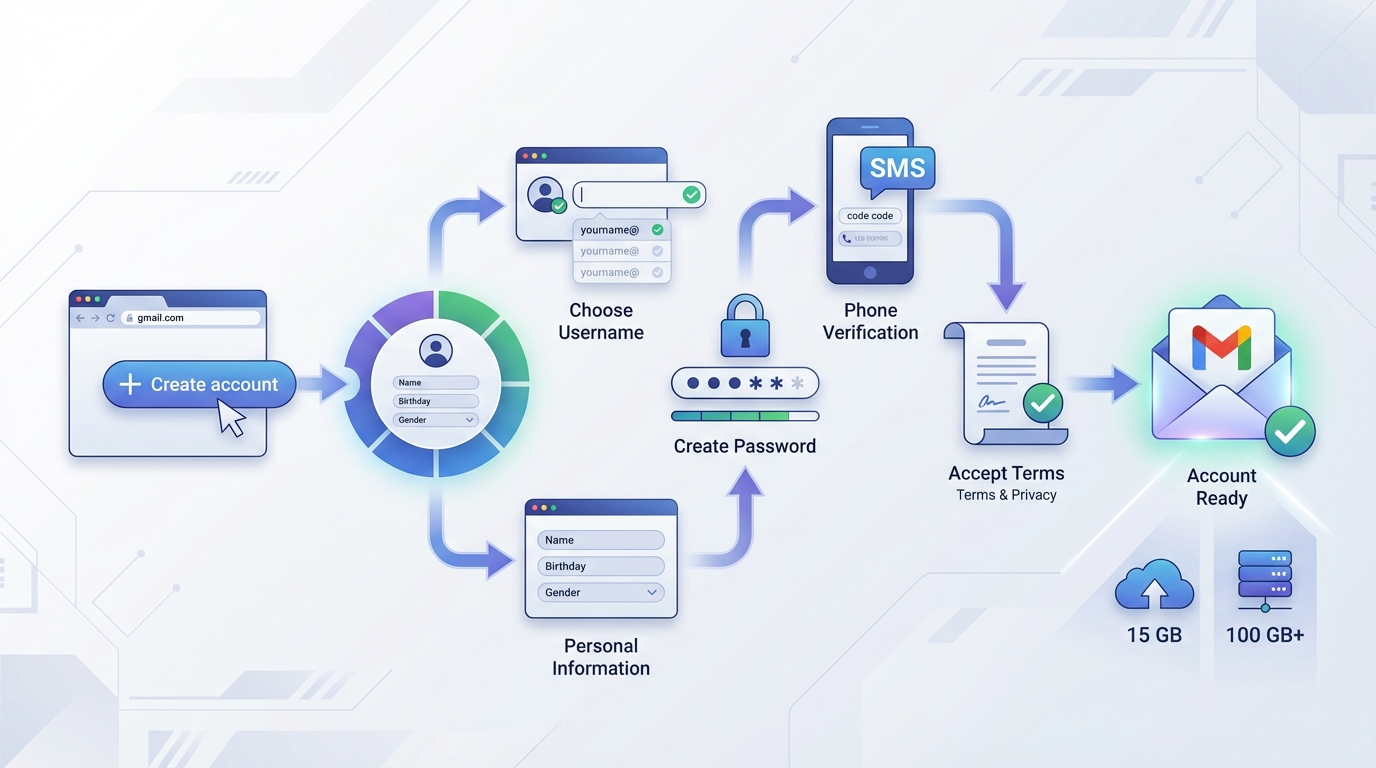
To create a Gmail email account, visit gmail.com and click ‘Create account.’ Enter your first and last name, choose a username (which becomes your email address), and create a strong password. Provide your phone number and recovery email, verify your account, and accept Google’s terms of service. Your new Gmail account will be ready to use immediately.
What information do I need to create a new Gmail account?
To create a Gmail account, you need your first and last name, a desired username (email address), a secure password, your birth date, and gender. Google also requires a phone number for verification and security purposes. Optionally, you can provide a recovery email address to help regain access if you forget your password.
Can I create multiple Gmail email accounts with one phone number?
Yes, you can create multiple Gmail accounts using the same phone number. Google allows you to verify up to four accounts with a single phone number. This is useful for separating personal and business emails or managing different projects. However, each account must have a unique username and email address.
How do I recover my Gmail email account if I forgot my password?
For Gmail email account recovery, go to the Gmail login page and click ‘Forgot password.’ Enter your email address and follow the prompts. Google will ask for your last remembered password, send a verification code to your recovery phone or email, or ask security questions. Once verified, you can reset your password and regain access.
What’s the difference between creating a Gmail account and other email providers like Yahoo or Hotmail?
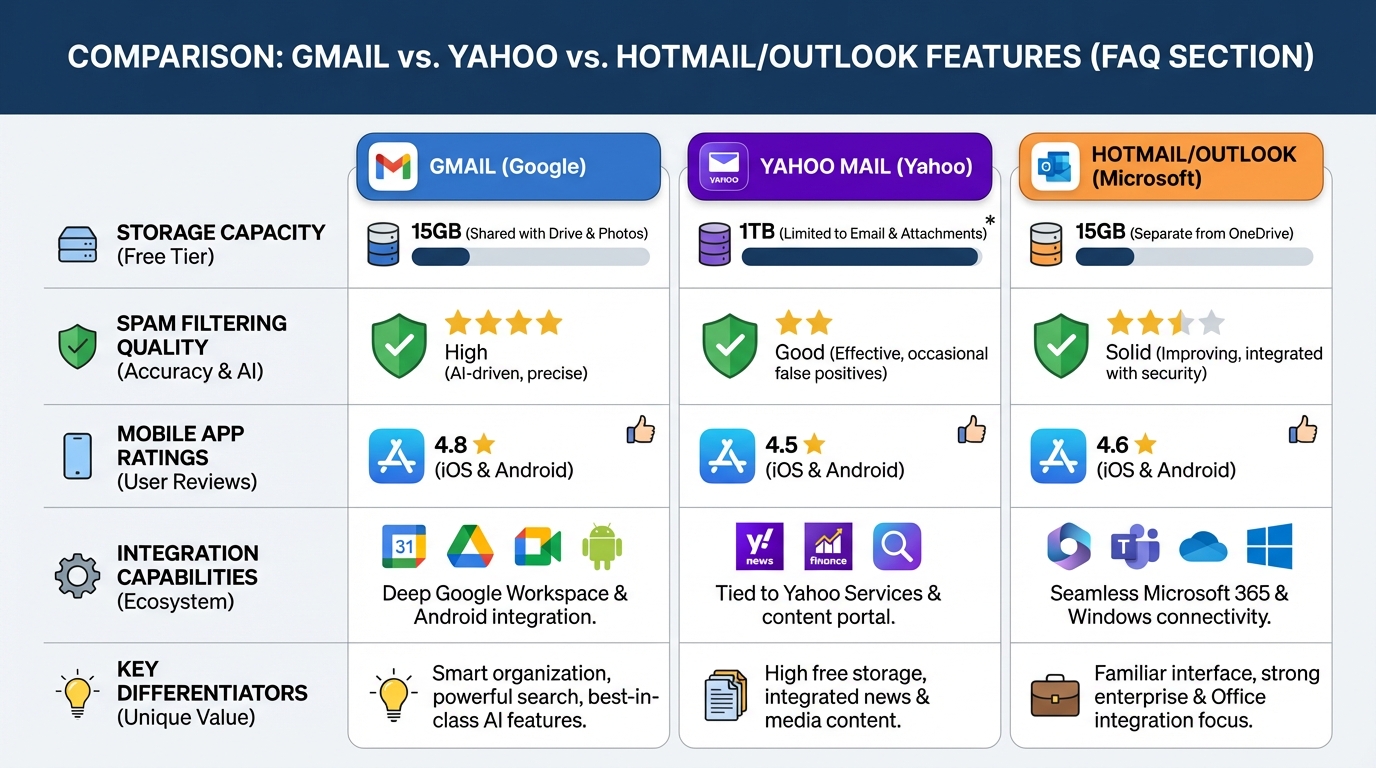
Creating a Gmail account is similar to Yahoo or Hotmail, but Gmail offers better integration with Google services like Drive, Calendar, and Docs. Gmail provides 15GB free storage, superior spam filtering, and powerful search capabilities. While the signup process is comparable across providers, Gmail’s interface is more intuitive and offers better mobile app functionality for business use.
Can I use a custom domain email with Gmail for my business?
Yes, through Google Workspace (formerly G Suite), you can use Gmail with your custom domain email. This requires purchasing a domain through providers like GoDaddy, then setting up Google Workspace. You’ll get professional email addresses (@yourbusiness.com) with Gmail’s interface, plus business tools like shared calendars, video conferencing, and cloud storage.
How do I create a Gmail account for cold email campaigns and outreach?
Create a Gmail account normally, then enable two-factor authentication for security. For cold email campaigns, consider using Google Workspace for better deliverability and professional custom domains. Connect your Gmail to email automation tools that support cold outreach, personalization at scale, and reply tracking. Always warm up new accounts gradually to avoid spam filters.
Is creating a Gmail account free and what are the storage limits?
Yes, creating a Gmail email account is completely free. Each free Gmail account includes 15GB of storage shared across Gmail, Google Drive, and Google Photos. If you need more storage, you can upgrade to Google One plans starting at 100GB. Free accounts have no time limits and include full access to Gmail’s features.
📧 How to Create a Gmail Email Account: Your Complete Guide
Creating a gmail email account create process is simpler than you might think, yet it’s one of the most important digital steps you’ll take for personal or professional communication. Whether you’re setting up your first email address or adding another account to your collection, Gmail offers a robust, free platform that integrates seamlessly with Google’s entire ecosystem of productivity tools.
In today’s digital landscape, having a reliable email account is essential for everything from business communications to personal correspondence. Gmail stands out as one of the most popular email services globally, offering 15GB of free storage, advanced spam filtering, and powerful search capabilities that make managing your inbox effortless.
This comprehensive guide will walk you through every step of creating your Gmail account, managing multiple email addresses, and understanding how email fits into your broader communication strategy. We’ll also explore related email services and best practices to help you maximize your email productivity.
🚀 Step-by-Step: Creating Your Gmail Email Account
The process to gmail email account create takes just a few minutes when you follow these straightforward steps. Google has streamlined the signup process to make it accessible for users of all technical skill levels.
Initial Setup Requirements
Before you begin, ensure you have the following information ready:
- Your first and last name
- A desired username (this becomes your email address)
- A strong, secure password
- A recovery phone number (optional but highly recommended)
- A backup email address for account recovery
- Your date of birth and country
The Account Creation Process
Follow these detailed steps to set up your new Gmail account:
- Navigate to Gmail: Open your web browser and go to gmail.com or accounts.google.com
- Click “Create Account”: Select the option to create a new account and choose whether it’s for personal use, business, or your child
- Enter Your Information: Fill in your first and last name in the designated fields
- Choose Your Username: Select a unique email address that will serve as your Gmail identity
- Create a Strong Password: Use a combination of uppercase and lowercase letters, numbers, and special characters
- Add Recovery Options: Include your phone number and backup email for gmail email account recovery purposes
- Verify Your Phone: Google will send a verification code to your phone number
- Complete Your Profile: Add your date of birth, gender, and other optional information
- Accept Terms of Service: Review and accept Google’s privacy policy and terms of service
Choosing the Perfect Email Address
When learning how i make new email, selecting the right username is crucial. Your email address represents your digital identity and often serves as your first impression in professional contexts.
| Do ✅ | Don’t ❌ |
|---|---|
| Use your real name or professional variation | Include random numbers or excessive punctuation |
| Keep it simple and memorable | Use unprofessional words or phrases |
| Consider including your industry or specialty | Make it overly long or complicated |
| Check availability across social platforms | Copy someone else’s established identity |
🔐 Gmail Email Account Recovery and Security
Understanding gmail email account recovery options is essential for maintaining continuous access to your account. Google provides multiple recovery methods to ensure you never lose access to your important communications and data.
Setting Up Recovery Options
When you create your Gmail account, Google strongly encourages you to add recovery information. This includes a phone number and backup email address that can be used if you forget your password or your account becomes compromised.
- Recovery Phone Number: Receive verification codes via SMS or voice call
- Backup Email: Get recovery links sent to an alternate email address
- Security Questions: Answer personal questions to verify your identity
- Two-Factor Authentication: Add an extra layer of security with 2FA
Best Practices for Account Security
Protecting your Gmail account requires proactive security measures. Consider implementing these strategies to keep your account safe:
- Enable two-factor authentication immediately after creating your account
- Use a unique password that you don’t use for any other service
- Regularly review your account activity and connected devices
- Update your recovery information whenever your contact details change
- Be cautious of phishing attempts and suspicious emails
📨 Comparing Email Services: Gmail vs. Alternatives
While Gmail is incredibly popular, understanding how it compares to other email services helps you make informed decisions about your communication tools. Let’s explore how Gmail stacks up against alternatives like email with att net, Yahoo Mail, and Hotmail.
Gmail vs. AT&T Email
For those wondering about sign in for att email, AT&T email (att.net) is primarily offered to AT&T internet subscribers. Unlike Gmail’s free standalone service, AT&T email is typically bundled with internet service packages.
| Feature | Gmail | AT&T Email |
|---|---|---|
| Storage | 15GB free | 1GB (varies by plan) |
| Accessibility | Available to anyone | Requires AT&T subscription |
| Mobile Apps | Excellent native apps | Limited mobile experience |
| Integration | Full Google ecosystem | Basic email functionality |
| Spam Filtering | Industry-leading AI | Standard filtering |
Gmail vs. Yahoo Mail
When accessing my emails yahoo, users find a familiar interface that’s been refined over decades. Yahoo Mail offers 1TB of storage, which significantly exceeds Gmail’s free tier, but Gmail’s superior search functionality and integration capabilities often make it the preferred choice for professionals.
Gmail vs. Hotmail/Outlook
The process to log into hotmail email (now Outlook.com) provides access to Microsoft’s email ecosystem. While Outlook offers excellent integration with Microsoft Office products, Gmail’s connection to Google Workspace makes it ideal for businesses already using Google’s productivity suite.
💼 Email for Business: Professional Communication Strategies
Understanding how can we write email effectively is crucial for professional success. Whether you’re using Gmail for personal communication or business outreach, mastering email etiquette and strategy separates successful communicators from those who struggle to get responses.
Setting Up Professional Email Infrastructure
While Gmail works well for personal use, businesses often need more robust solutions. Considerations include using an email server for business that offers custom domain names, enhanced security, and administrative controls.
- Custom Domain Email: Use godaddy and email services or Google Workspace to create professional addresses like yourname@yourbusiness.com
- Email Authentication: Implement SPF, DKIM, and DMARC records to improve deliverability
- Team Collaboration: Set up shared inboxes and distribution lists for departments
- Email Automation: Integrate with tools for scheduling, follow-ups, and campaign management
Email Best Practices for Sales and Marketing
For professionals using email as part of their crm inside sales strategy, following best practices dramatically improves response rates and conversion metrics:
| Element | Best Practice | Why It Matters |
|---|---|---|
| Subject Line | Clear, specific, under 50 characters | Increases open rates by 20-30% |
| Opening | Personalized greeting with recipient’s name | Builds immediate connection |
| Body | Concise, scannable, value-focused | Respects recipient’s time |
| Call-to-Action | Single, clear next step | Drives desired response |
| Signature | Professional with contact info | Facilitates easy follow-up |
For more insights on crafting effective cold emails, check out The Best From Line for Cold Emails: 4 examples that work, which provides proven strategies for improving your email outreach performance.
🔧 Advanced Gmail Features and Productivity Tips
Once you’ve mastered the basics of gmail email account create, exploring advanced features transforms Gmail from a simple email client into a powerful productivity tool.
Gmail Organization Tools
Gmail offers several built-in features to help you manage your inbox efficiently:
- Labels and Filters: Automatically categorize incoming emails based on sender, subject, or content
- Priority Inbox: Let Gmail’s AI identify your most important messages
- Multiple Inboxes: View different label categories side-by-side
- Snooze Feature: Temporarily remove emails and have them reappear at a specified time
- Smart Compose: AI-powered suggestions complete your sentences as you type
Keyboard Shortcuts for Power Users
Enable keyboard shortcuts in Gmail settings to dramatically speed up your email workflow. Essential shortcuts include:
| Shortcut | Action |
|---|---|
| C | Compose new email |
| R | Reply to email |
| E | Archive email |
| J/K | Navigate between emails |
| G then I | Go to inbox |
| / (slash) | Search your mail |
Integration with Google Workspace
Your Gmail account serves as the gateway to Google’s entire productivity ecosystem, including:
- Google Calendar: Schedule meetings directly from email conversations
- Google Drive: Share large files without worrying about attachment size limits
- Google Meet: Launch video calls instantly from your inbox
- Google Tasks: Convert emails into actionable to-do items
- Google Keep: Save important information from emails as notes
📊 Managing Multiple Email Accounts
Many professionals need to manage multiple email addresses for different purposes. Gmail makes it easy to consolidate several accounts into a single interface.
Adding Multiple Accounts to Gmail
You can access multiple Gmail accounts simultaneously by:
- Using Gmail’s account switcher in the top-right corner
- Setting up email forwarding from other accounts to your primary Gmail
- Configuring “Send mail as” to send from different addresses
- Using Gmail’s import feature to retrieve mail from other providers
When to Create Additional Email Accounts
Consider creating separate Gmail accounts for:
- Professional vs. Personal: Keep work and personal communications separate
- Business Ventures: Maintain distinct identities for different projects or companies
- Newsletter Subscriptions: Avoid cluttering your primary inbox with promotional content
- Online Shopping: Track orders and receipts in a dedicated account
- Testing and Development: Create test accounts for software development or marketing campaigns
🎯 Email Marketing and Outreach Strategies
For businesses and sales professionals, email remains one of the most effective channels for reaching prospects and nurturing relationships. Understanding how to leverage email for business development is essential in today’s competitive landscape.
Building an Email Outreach Strategy
Successful email campaigns require careful planning and execution. Key components include:
- List Building: Develop a targeted list of prospects who match your ideal customer profile
- Personalization: Customize messages based on recipient data and behavior
- Value Proposition: Clearly communicate how your offering solves specific problems
- Follow-up Sequences: Implement systematic follow-up to maximize response rates
- Performance Tracking: Monitor open rates, click-through rates, and conversions
If you’re looking to find contact information for your outreach campaigns, explore How do you Find Someone’s Email on Facebook: 5 Proven Methods for practical techniques to build your prospect list.
Email Automation Tools
While Gmail provides excellent basic functionality, scaling your email outreach requires specialized tools. Professional email automation platforms help you:
- Send personalized emails at scale without manual effort
- Schedule follow-up sequences based on recipient behavior
- Track engagement metrics and optimize campaign performance
- Maintain high deliverability rates with proper email warming
- Integrate with your CRM to sync contact information and activities
For teams building out their email capabilities, consider reviewing Cold Email Lead Generation Vacancy: Hire Top Talent Fast to find professionals who can execute sophisticated email campaigns.
🌐 Email Across Different Platforms and Devices
Modern email usage extends far beyond desktop computers. Understanding how to access and manage your Gmail account across various platforms ensures you stay connected wherever you are.
Mobile Email Management
The Gmail mobile app offers nearly all the functionality of the desktop version, with some mobile-specific advantages:
- Push Notifications: Receive instant alerts for important emails
- Offline Access: Read and compose emails without an internet connection
- Voice Typing: Dictate emails using your device’s voice recognition
- Smart Reply: Respond quickly with AI-generated suggestions
- Unified Inbox: Manage multiple accounts from a single app
Desktop Email Clients
While Gmail’s web interface is excellent, some users prefer desktop email clients like:
| Client | Best For | Key Features |
|---|---|---|
| Outlook | Microsoft ecosystem users | Calendar integration, Office compatibility |
| Thunderbird | Open-source enthusiasts | Customizable, privacy-focused |
| Apple Mail | Mac users | Seamless macOS integration |
| Mailbird | Windows power users | App integrations, speed |
💡 Troubleshooting Common Gmail Issues
Even with Gmail’s reliability, users occasionally encounter issues. Here are solutions to the most common problems:
Account Access Problems
If you’re having trouble accessing your account:
- Forgot Password: Use the gmail email account recovery process by clicking “Forgot password” on the login page
- Account Locked: Follow Google’s verification steps to prove account ownership
- Suspicious Activity: Review recent activity and secure your account by changing your password
- Browser Issues: Clear your cache and cookies, or try a different browser
Email Delivery Issues
When emails aren’t sending or receiving properly:
- Check your internet connection and Gmail server status
- Verify that emails aren’t being filtered to spam or other folders
- Review your filters and forwarding settings
- Ensure you haven’t exceeded Gmail’s sending limits
- Check if the recipient’s address is correct and active
Storage Management
When approaching your 15GB storage limit:
- Delete large attachments using Gmail’s search operators (e.g., “size:10MB”)
- Empty your spam and trash folders completely
- Review and delete old emails you no longer need
- Consider upgrading to Google One for additional storage
- Use Google Takeout to archive old emails externally
🚀 Maximizing Email Productivity for Business Growth
Email remains a cornerstone of business communication, but managing it effectively requires strategy and the right tools. For sales teams, marketing professionals, and business development representatives, email productivity directly impacts revenue generation.
Email Metrics That Matter
Track these key performance indicators to optimize your email strategy:
| Metric | Industry Benchmark | How to Improve |
|---|---|---|
| Open Rate | 15-25% | Improve subject lines, sender reputation |
| Click-Through Rate | 2-5% | Better CTAs, relevant content |
| Reply Rate | 8-15% (cold email) | Personalization, timing, value proposition |
| Bounce Rate | Under 2% | List hygiene, email verification |
| Unsubscribe Rate | Under 0.5% | Audience targeting, content quality |
Scaling Your Email Operations
As your business grows, manual email management becomes unsustainable. Consider implementing:
- Email Automation Platforms: Tools that handle sequencing, personalization, and follow-ups
- CRM Integration: Sync email activities with your customer relationship management system
- Team Collaboration: Shared inboxes and assignment workflows for customer support
- Template Libraries: Pre-written, customizable templates for common scenarios
- Analytics Dashboards: Real-time visibility into email performance across your team
For businesses looking to streamline their email outreach and generate more leads, professional automation tools can transform your results. Meetbound specializes in helping sales teams and marketing professionals automate cold email campaigns while maintaining personalization at scale, ultimately boosting reply rates and accelerating lead generation.
🎓 Conclusion: Mastering Email for Personal and Professional Success
Creating a Gmail account is just the beginning of your email journey. Whether you’re setting up your first address or optimizing your existing email strategy, understanding the fundamentals of gmail email account create, security, and productivity features empowers you to communicate more effectively.
From basic account setup to advanced automation strategies, email remains one of the most powerful tools for professional communication and business development. By implementing the best practices outlined in this guide—including proper security measures, organizational systems, and strategic outreach techniques—you’ll maximize the value of your email communications.
Remember that effective email management isn’t just about sending messages; it’s about building relationships, delivering value, and achieving your business objectives. Whether you’re comparing email with att net, learning how can we write email more effectively, or setting up an email server for business, the principles of clear communication and strategic thinking remain constant.
For sales teams conducting B2B outreach campaigns, marketing professionals managing lead generation activities, business development representatives seeking qualified leads, and startup founders building customer acquisition pipelines, email automation can be a game-changer. Visit Meetbound to discover how you can automate your cold email campaigns, personalize at scale, and boost reply rates with powerful outreach tools designed to generate more leads faster. Transform your email strategy today and watch your business growth accelerate! 🚀
Article created using IntentRank