

TL;DR: To create a group email, open your email client and add multiple recipients in the “To” or “BCC” field, or create a contact group/distribution list in your email settings. Save the group for future use, then compose your message and send to all members simultaneously, enabling efficient bulk communication.
Frequently Asked Questions

How do you create a group email in Gmail?
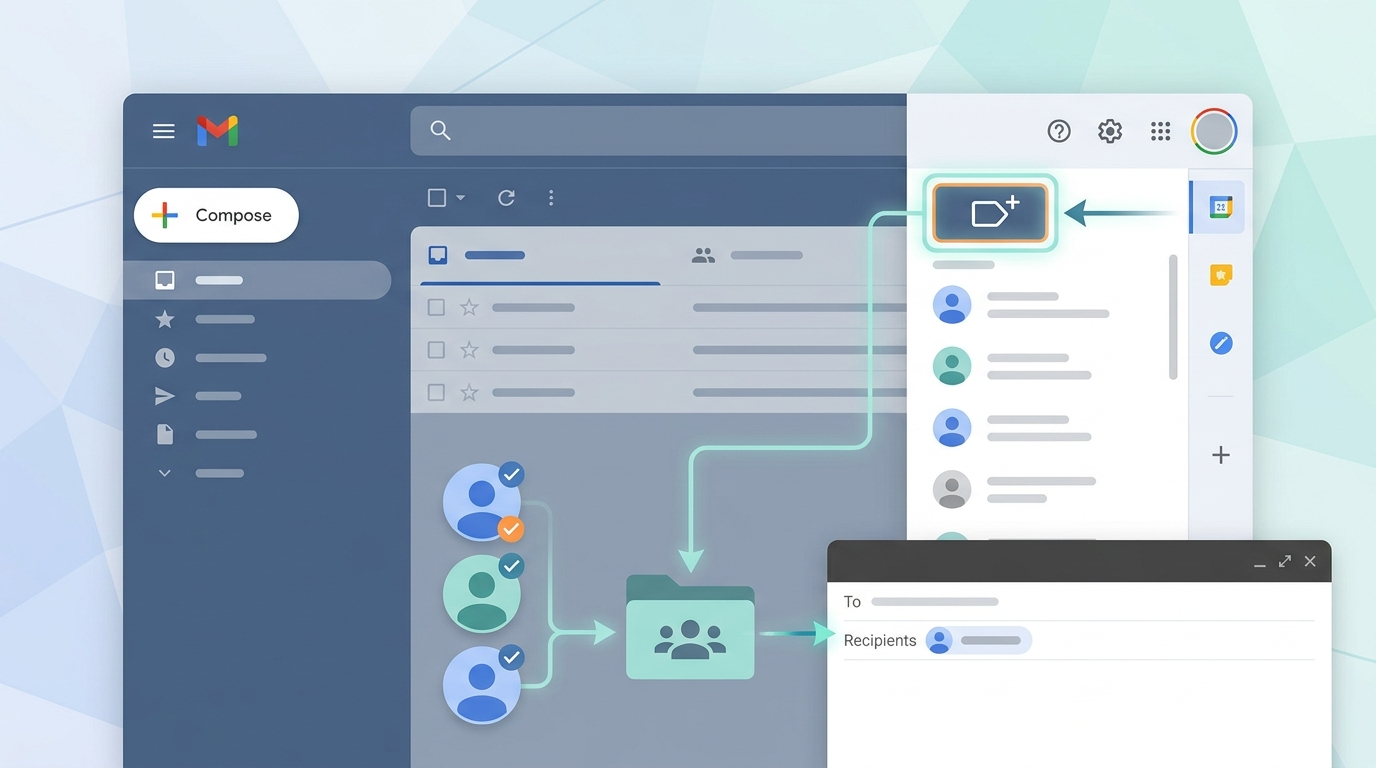
To create a group email in Gmail, open Google Contacts, click ‘Create label’ on the left sidebar, name your group, and add contacts. When composing an email, type the group label name in the ‘To’ field. Alternatively, use Google Groups to create distribution lists for larger teams. This allows you to send emails to multiple recipients simultaneously without typing individual addresses.
What is the easiest way to send emails to multiple recipients at once?
The easiest way is creating a contact group or distribution list in your email provider. Most services like Gmail, Outlook, Yahoo, and AT&T email support contact groups. Simply create a group, add all desired email addresses, and use the group name when composing messages. For automated cold email campaigns at scale, specialized outreach tools offer advanced features like personalization and scheduling.
How do you create a group email in Outlook?
In Outlook, go to the People or Contacts section, select ‘New Contact Group’ from the ribbon menu, name your group, and click ‘Add Members’ to include contacts from your address book or manually enter email addresses. Save the group, and it will appear in your contacts list for easy access when composing emails to multiple recipients.
Can you create a group email with Yahoo Mail?
Yes, Yahoo Mail allows group email creation through contact lists. Click the Contacts icon, select ‘Lists’ from the left menu, then ‘Create list.’ Name your list and add contacts by searching your existing contacts or entering email addresses manually. When composing an email, type the list name in the recipient field to send messages to all members simultaneously.
How do you set up a group email for cold email campaigns?
For cold email campaigns, use dedicated email outreach tools rather than standard email providers. These platforms allow you to import contact lists, create email sequences, personalize messages at scale, and track engagement metrics. They integrate with CRM systems for inside sales teams and include features like automated follow-ups, A/B testing, and reply rate optimization to generate more leads efficiently.
What is the difference between CC, BCC, and group email?
CC (Carbon Copy) and BCC (Blind Carbon Copy) send individual emails where recipients see other addresses (CC) or don’t see them (BCC). Group emails use distribution lists where one address represents multiple recipients. For privacy in bulk emails, BCC is preferred. Group emails are better for ongoing communication with the same team, while BCC works for one-time announcements to protect recipient privacy.
How do you create a group email in AT&T email?
In AT&T email (att.net), sign in to your account, navigate to Contacts, and create a new group or list. Add contacts by selecting existing entries or manually entering email addresses. Save the group with a descriptive name. When composing emails, type the group name in the recipient field to send messages to all members at once without entering individual addresses.
What tools help automate group email campaigns for sales teams?
Cold email automation platforms are ideal for sales teams, offering features like contact list management, email sequence creation, personalization tokens, automated follow-ups, and CRM integration. These tools help inside sales teams send personalized emails at scale, track open and reply rates, manage campaigns across multiple email accounts, and generate more qualified leads faster than manual outreach methods.
Understanding Group Email Creation: Your Complete Guide

If you’re wondering how do you create a group email, you’re not alone. Whether you’re managing a sales team, coordinating marketing campaigns, or simply staying organized with family and friends, group emails save time and streamline communication. Creating a group email allows you to send messages to multiple recipients simultaneously without manually entering each address every time. 📧
This comprehensive guide walks you through creating group emails across multiple platforms, from Gmail to Outlook, Yahoo, and professional email services. You’ll learn best practices, troubleshooting tips, and advanced strategies to maximize your email efficiency.
By mastering group email creation, you’ll transform how you communicate, whether you’re running cold outreach campaigns or coordinating team projects. Let’s dive into the essential techniques that will revolutionize your email workflow.
Why Group Emails Matter for Modern Communication
Group emails have become indispensable tools for both personal and professional communication. They eliminate the tedious process of adding individual recipients and reduce the risk of accidentally omitting important contacts from critical messages.
Key Benefits of Group Email Lists
- Time Efficiency: Send messages to dozens or hundreds of contacts with a single click
- Consistency: Ensure everyone receives the same information simultaneously
- Organization: Categorize contacts by project, department, or relationship
- Reduced Errors: Minimize the chance of missing important recipients
- Professional Presentation: Maintain clean, organized communication channels
For businesses conducting B2B outreach campaigns, group emails become even more critical. They enable cold email automation and personalized messaging at scale, helping sales teams generate more qualified leads efficiently.
How Do You Create a Group Email in Gmail
Gmail offers one of the most intuitive systems for creating group emails through Google Contacts. This method works seamlessly whether you’re accessing Gmail from desktop or mobile devices. 🎯
Step-by-Step Gmail Group Creation Process
- Access Google Contacts: Navigate to contacts.google.com or click the Google Apps icon in Gmail and select “Contacts”
- Create a New Label: Click “Create label” in the left sidebar
- Name Your Group: Enter a descriptive name like “Sales Team,” “Marketing Department,” or “Project Alpha”
- Add Contacts: Select contacts by checking boxes next to their names, then click the label icon and choose your newly created label
- Compose to Your Group: When composing an email, type the label name in the “To” field, and Gmail will populate all contacts in that group
If you’re new to Gmail or need to set up an account first, check out this comprehensive guide on Gmail email account create to get started properly.
Alternative Method: Using the “+” Button
Gmail also allows quick group creation directly from the Contacts interface. Simply hover over any contact, click the “+” icon, and select “Create label” to instantly categorize contacts into manageable groups.
| Feature | Contact Labels | Google Groups |
|---|---|---|
| Setup Complexity | Simple | Moderate |
| Maximum Recipients | 500 per day | Varies by plan |
| Collaboration Tools | Limited | Advanced |
| Best For | Personal use, small teams | Organizations, large groups |
Creating Group Emails in Outlook and Microsoft 365
Microsoft Outlook provides robust group email functionality through contact groups (formerly called distribution lists). This feature integrates seamlessly with Microsoft 365 environments, making it ideal for enterprise users.
Outlook Desktop Application Method
- Open People or Contacts: Navigate to the People icon in the bottom navigation bar
- Select New Contact Group: Click “New Contact Group” in the Home ribbon
- Name Your Group: Enter a meaningful name in the Name field
- Add Members: Click “Add Members” and choose from Outlook Contacts, Address Book, or create new contacts
- Save and Close: Click “Save & Close” to finalize your contact group
Outlook.com Web Interface
For users accessing Outlook through a web browser, the process differs slightly but remains straightforward. Click the People icon, select “New contact list,” add members, and save. Your group will be available immediately when composing emails.
Understanding how can we write email effectively to these groups ensures your messages resonate with recipients and drive the desired actions, whether that’s scheduling meetings or generating responses to cold outreach.
Yahoo Mail and Other Email Providers
Yahoo Mail users can create contact lists through a similar process. For those managing my emails yahoo accounts, the platform offers straightforward group management capabilities. 📬
Yahoo Mail Contact List Creation
- Access Yahoo Contacts: Click the Contacts icon in Yahoo Mail
- Create New List: Select “Lists” from the left sidebar, then click “Create list”
- Add List Name: Enter a descriptive name for your contact list
- Add Contacts: Search for and add contacts to your list
- Save Your List: Click “Save” to finalize the contact list
AT&T Email and Other Providers
For users working with email with att net or needing to sign in for att email, the process typically follows similar patterns. Most email providers offer contact grouping functionality, though the exact terminology may vary (groups, lists, categories, or labels).
When you log into hotmail email (now Outlook.com), you’ll find the same Microsoft contact group functionality described earlier, ensuring consistency across Microsoft email services.
| Provider | Group Feature Name | Max Recipients | Mobile Support |
|---|---|---|---|
| Gmail | Contact Labels | 500/day | Excellent |
| Outlook | Contact Groups | 500/message | Excellent |
| Yahoo Mail | Contact Lists | 100/message | Good |
| AT&T Email | Contact Groups | Varies | Moderate |
Professional Email Services and Domain-Based Solutions
For businesses conducting serious outreach campaigns, professional email services offer superior functionality. Understanding GoDaddy and email setup, for instance, provides enterprise-level group email capabilities with custom domains.
Benefits of Custom Domain Email Groups
- Professional Branding: Send from yourname@yourcompany.com instead of generic providers
- Enhanced Deliverability: Custom domains typically achieve better inbox placement rates
- Advanced Segmentation: Create sophisticated contact groups based on multiple criteria
- Integration Capabilities: Connect with CRM systems for crm inside sales workflows
- Scalability: Handle larger contact lists without hitting provider limits
Setting Up Professional Email Groups
Most professional email hosting services, including Google Workspace, Microsoft 365, and GoDaddy, offer administrative controls for creating organization-wide distribution lists. These allow IT administrators to manage group memberships centrally while individual users can create personal contact groups.
When you’re ready to how i make new email addresses for different campaigns or departments, professional services provide the infrastructure needed for sophisticated email marketing and outreach strategies.
Best Practices for Managing Group Emails
Creating a group email is just the beginning. Effective management ensures your communication remains organized, compliant, and productive. 🎓
Organizational Strategies
- Use Descriptive Names: Choose clear, specific names like “Q1-2025-Product-Launch-Team” rather than vague labels
- Regular Maintenance: Review and update group memberships monthly to remove inactive contacts
- Hierarchical Structure: Create nested groups for complex organizations (e.g., “Sales Team” containing “East Coast Sales” and “West Coast Sales”)
- Documentation: Maintain a list of all groups, their purposes, and current members
- Access Controls: Limit who can modify group memberships to prevent unauthorized changes
Privacy and Compliance Considerations
When sending to group emails, always consider privacy implications. Use BCC (Blind Carbon Copy) when recipients shouldn’t see each other’s addresses, especially for cold outreach or when contacting customers. This protects privacy and maintains professional standards.
For B2B outreach campaigns, understanding how to properly structure group emails while maintaining personalization is crucial. Tools like cold email automation platforms help balance efficiency with the personal touch that drives responses.
Avoiding Common Pitfalls
| Mistake | Consequence | Solution |
|---|---|---|
| Using CC instead of BCC | Privacy breach, spam complaints | Always use BCC for mass emails |
| Outdated contact lists | High bounce rates, deliverability issues | Regular list hygiene and validation |
| Generic messaging | Low engagement, poor response rates | Segment and personalize content |
| Exceeding send limits | Account suspension, delivery blocks | Monitor daily sending quotas |
Advanced Techniques for Business Outreach
For sales teams and marketing professionals, group emails transcend simple contact management. They become strategic tools for lead generation and customer acquisition when implemented correctly. 💼
Segmentation Strategies
Create multiple targeted groups based on:
- Industry Vertical: Technology, healthcare, finance, manufacturing
- Company Size: Enterprise, mid-market, small business, startup
- Engagement Level: Hot leads, warm prospects, cold contacts, inactive
- Sales Funnel Stage: Awareness, consideration, decision, retention
- Geographic Location: Region, country, timezone for optimal send times
Integration with CRM Systems
Modern crm inside sales workflows require seamless integration between email platforms and customer relationship management systems. This ensures contact groups remain synchronized with your sales pipeline, automatically updating as prospects move through stages.
Many businesses struggle with finding accurate contact information. Learning how to find someone’s email on Facebook and similar techniques helps build robust, targeted contact groups for outreach campaigns.
Personalization at Scale
While group emails save time, they shouldn’t appear generic. Modern email platforms support merge tags and dynamic content that personalize messages even when sent to large groups. Include recipient names, company details, and relevant context to increase engagement rates.
Understanding the best from line for cold emails significantly impacts open rates, making your group email campaigns more effective regardless of list size.
Troubleshooting Common Group Email Issues
Even experienced users encounter challenges when managing group emails. Here’s how to resolve the most frequent problems. 🔧
Delivery and Bounce Issues
When emails to your group fail to deliver, several factors might be responsible:
- Invalid Email Addresses: Regularly validate contacts and remove bounced addresses
- Spam Filters: Avoid trigger words, maintain proper authentication (SPF, DKIM, DMARC)
- Send Limit Violations: Respect provider limits (Gmail: 500/day, Outlook: 500/message)
- Blacklisted IP/Domain: Monitor sender reputation and address issues promptly
Group Management Problems
If you can’t find or edit your groups, try these solutions:
- Check Correct Interface: Ensure you’re accessing the proper contacts or people section
- Sync Issues: Force synchronization between devices or wait for cloud updates
- Permission Problems: Verify you have editing rights for organization-wide groups
- Browser Cache: Clear cache or try a different browser for web-based email
Email Recovery and Account Access
Lost access to your email account? Understanding Gmail email account recovery processes helps restore access to your carefully curated contact groups. Similarly, knowing how to withdraw Gmail email or recall messages can save you from sending incorrect information to entire groups.
Mobile Group Email Management
Managing group emails on mobile devices requires understanding platform-specific interfaces and limitations. Most modern email apps support group functionality, though the experience may differ from desktop versions. 📱
Gmail Mobile App
Access contact labels through the Gmail app by tapping the compose button, then typing your label name in the recipient field. The app auto-suggests your contact groups, making mobile group emailing seamless.
Outlook Mobile App
The Outlook mobile app provides full contact group support. Tap the new email icon, then search for your contact group name in the “To” field. The app displays all group members before sending.
Mobile Best Practices
- Review Recipients: Always verify the recipient list before sending from mobile devices
- Use Templates: Save frequently used messages to avoid typing on small screens
- Schedule Sends: Use scheduling features to compose on mobile but send during optimal times
- Sync Regularly: Ensure contact groups synchronize across all devices
Scaling Group Emails for Lead Generation
For businesses focused on growth, group emails evolve into sophisticated lead generation tools. Sales teams conducting B2B outreach need systems that scale beyond basic contact groups. 🚀
Building a Lead Generation Email System
Effective lead generation requires more than creating simple contact groups. Consider these advanced strategies:
- Multi-Stage Sequences: Create groups for each stage of your outreach sequence (initial contact, follow-up 1, follow-up 2, etc.)
- A/B Testing Groups: Divide similar prospects into test groups to compare messaging effectiveness
- Response-Based Segmentation: Automatically move contacts between groups based on engagement
- Exclusion Lists: Maintain groups of unsubscribed or unresponsive contacts to avoid wasting resources
Hiring for Email Outreach Success
As your outreach scales, you may need dedicated personnel. Understanding cold email lead generation vacancy requirements helps you hire talent capable of managing complex group email campaigns effectively.
Automation and Personalization Balance
The key to successful scaled outreach is balancing automation efficiency with genuine personalization. While group emails enable sending to hundreds of prospects, each message should feel individually crafted. This requires:
| Element | Automated Approach | Personalized Touch |
|---|---|---|
| Subject Line | Template with merge tags | Company-specific reference |
| Opening | Name personalization | Recent company news mention |
| Body | Value proposition framework | Industry-specific pain points |
| Call-to-Action | Standard meeting request | Specific time slot suggestion |
Professional cold email automation tools help maintain this balance, allowing you to manage large contact groups while preserving the personal touch that drives responses. These platforms integrate with your existing email infrastructure, enhancing rather than replacing your group email capabilities.
Measuring Group Email Success
Creating and sending group emails is only valuable if you measure and optimize performance. Tracking key metrics helps refine your approach and improve results over time. 📊
Essential Email Metrics
- Open Rate: Percentage of recipients who open your email (industry average: 15-25%)
- Click-Through Rate: Percentage who click links within your message (average: 2-5%)
- Response Rate: Percentage who reply to your email (cold outreach average: 1-5%)
- Bounce Rate: Percentage of undeliverable emails (keep below 2%)
- Unsubscribe Rate: Percentage who opt out (keep below 0.5%)
Analyzing Group Performance
Compare performance across different contact groups to identify patterns. Groups with higher engagement rates indicate better targeting, messaging, or timing. Use these insights to refine underperforming groups.
Continuous Improvement Process
- Establish Baselines: Track initial performance metrics for each group
- Test Variables: Experiment with subject lines, send times, and message content
- Analyze Results: Compare test performance against baselines
- Implement Winners: Apply successful strategies across similar groups
- Repeat Cycle: Continuously test and optimize for better results
Many email platforms provide built-in analytics, but dedicated cold email tools offer more sophisticated tracking and optimization features specifically designed for outreach campaigns.
Legal and Compliance Considerations
Group email management involves legal responsibilities, particularly when conducting business outreach. Understanding compliance requirements protects your business and maintains recipient trust. ⚖️
Key Regulations to Know
- CAN-SPAM Act (USA): Requires accurate sender information, clear subject lines, and unsubscribe mechanisms
- GDPR (European Union): Mandates explicit consent before sending marketing emails to EU residents
- CASL (Canada): Requires express or implied consent for commercial electronic messages
- PECR (UK): Regulates electronic marketing communications and privacy
Compliance Best Practices
Ensure your group email campaigns remain compliant by:
- Obtaining Consent: Document how you acquired each contact’s information and permission
- Clear Identification: Always identify yourself and your organization accurately
- Easy Unsubscribe: Include prominent, functional unsubscribe links in every message
- Honor Opt-Outs: Process unsubscribe requests within 10 business days
- Accurate Subject Lines: Never use deceptive subject lines to increase opens
- Physical Address: Include your valid physical postal address in all commercial emails
Maintaining Consent Records
Create a system for documenting consent alongside your contact groups. Note the date, method, and source of consent for each contact. This documentation proves invaluable if compliance questions arise.
Future of Group Email Management
Email communication continues evolving with new technologies and user expectations. Understanding emerging trends helps future-proof your group email strategies. 🔮
Emerging Technologies
- AI-Powered Personalization: Artificial intelligence generates unique message variations for each recipient while maintaining group efficiency
- Predictive Send Time Optimization: Algorithms determine optimal send times for each contact within your groups
- Advanced Segmentation: Machine learning identifies patterns and suggests new group configurations
- Automated List Hygiene: AI continuously validates and updates contact information
- Sentiment Analysis: Tools assess recipient responses and automatically adjust messaging strategies
Evolving Best Practices
As email platforms become more sophisticated, best practices adapt accordingly. Modern approaches emphasize quality over quantity, with smaller, highly targeted groups often outperforming larger, generic lists.
The future of group email management lies in intelligent automation that preserves human connection. Rather than replacing personal touch, technology amplifies your ability to maintain meaningful relationships at scale.
Conclusion: Mastering Group Email Creation
Understanding how do you create a group email transforms your communication efficiency across personal and professional contexts. Whether you’re managing a small team or conducting large-scale B2B outreach campaigns, properly organized contact groups form the foundation of effective email communication.
From basic Gmail labels to sophisticated CRM-integrated systems, the principles remain consistent: organize contacts logically, maintain list hygiene, respect privacy and compliance requirements, and continuously optimize based on performance data.
For sales teams and marketing professionals seeking to scale their outreach while maintaining personalization, group emails represent just the beginning. Modern cold email automation platforms build upon these fundamentals, adding advanced features like sequence automation, A/B testing, and sophisticated analytics.
Ready to transform your email outreach and generate more qualified leads? Visit our website to discover how powerful cold email automation can help you personalize at scale, boost reply rates, and accelerate your lead generation. Our platform combines the efficiency of group email management with advanced features designed specifically for B2B outreach success. Start automating your campaigns today and watch your response rates soar! 🚀
Article created using IntentRank