TL;DR: To withdraw a Gmail email, you must recall it within 5-30 seconds using the Undo Send feature. Enable this in Settings under the General tab, set your cancellation period, and click Undo Send immediately after sending. Once the time window expires, you cannot withdraw the Gmail email, though you can follow up with corrections.
Frequently Asked Questions
How do I withdraw or unsend a Gmail email after sending it?
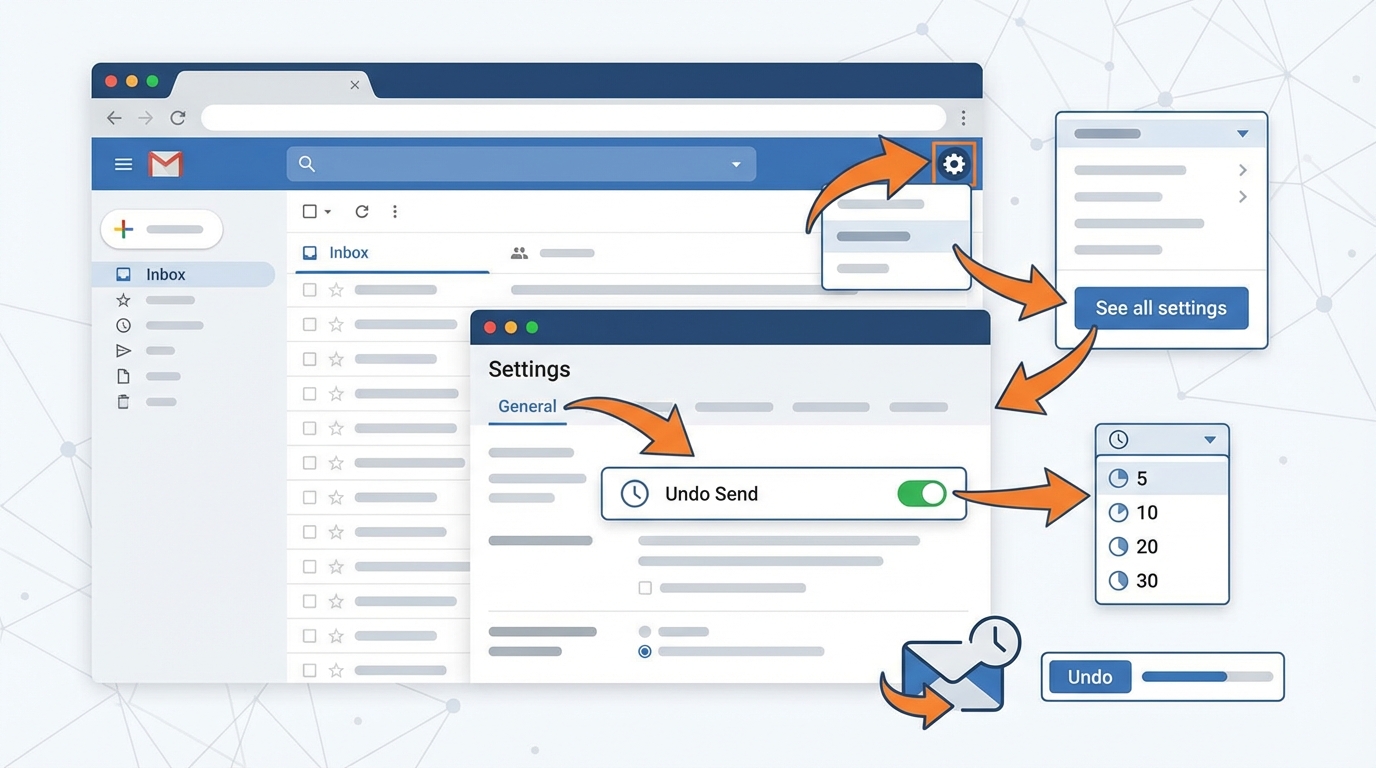
Gmail offers an ‘Undo Send’ feature that lets you recall emails within 5-30 seconds after sending. To use it, click ‘Undo’ in the notification that appears after sending. You can adjust the cancellation period in Settings > General > Undo Send. Set your preferred timeframe (5, 10, 20, or 30 seconds) to maximize your window for withdrawing sent emails.
Can you permanently withdraw a Gmail email that was already delivered?
Once a Gmail email is delivered and the undo send window expires, you cannot withdraw or delete it from the recipient’s inbox. The email becomes the recipient’s property. Your only option is to send a follow-up email requesting they disregard the previous message or use Gmail’s Confidential Mode for future emails, which allows you to set expiration dates and revoke access.
What is Gmail’s Confidential Mode and how does it help withdraw email access?
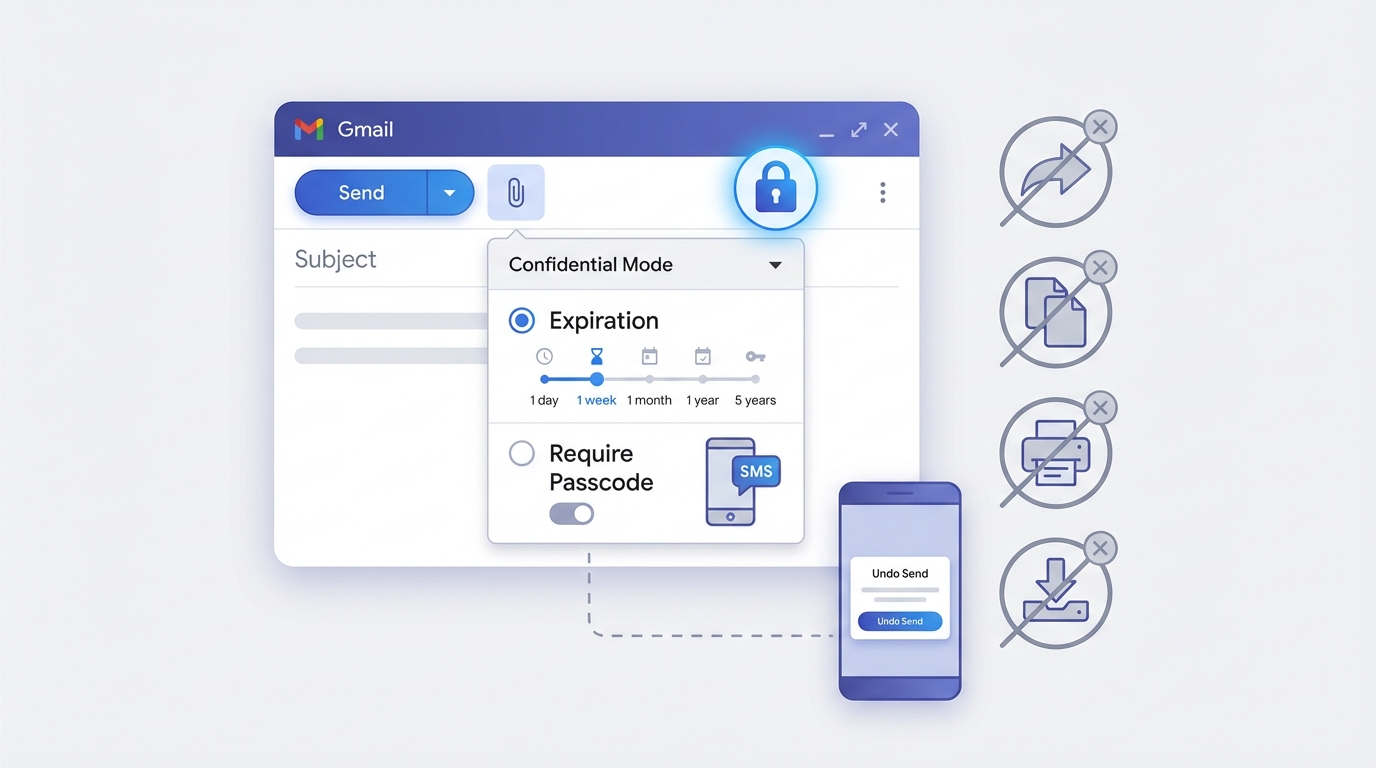
Gmail’s Confidential Mode lets you send emails with expiration dates and revoke access anytime. Recipients cannot forward, copy, print, or download confidential emails. To use it, click the lock icon when composing, set an expiration date (1 day to 5 years), and optionally require an SMS passcode. This effectively withdraws access after your chosen timeframe.
How do I enable the Undo Send feature in my Gmail email account?
To enable Undo Send in Gmail, click the gear icon, select ‘See all settings,’ go to the ‘General’ tab, and find ‘Undo Send.’ Check the box to enable it and select your cancellation period (5, 10, 20, or 30 seconds). Scroll down and click ‘Save Changes.’ The feature works on both desktop and mobile Gmail apps.
What happens if I withdraw a Gmail email using Undo Send?
When you successfully withdraw a Gmail email using Undo Send, the email is completely prevented from being sent. It never reaches the recipient’s inbox, and there’s no trace of the attempted send. The email returns to your compose window, allowing you to make edits, change recipients, or discard it entirely before sending again.
Can I withdraw emails sent from Gmail to other email providers like Hotmail or Yahoo?
Yes, Gmail’s Undo Send feature works regardless of the recipient’s email provider (Hotmail, Yahoo, ATT.net, GoDaddy, etc.). The withdrawal happens on Gmail’s servers before delivery, so it doesn’t matter what email service the recipient uses. However, you must act within your configured undo send timeframe (5-30 seconds) for successful withdrawal.
How can cold email automation tools help prevent the need to withdraw Gmail emails?
Cold email automation tools help prevent withdrawal needs by offering preview modes, A/B testing, scheduled sending, and personalization verification before emails go out. These platforms let you review campaigns, test variables, and catch errors before deployment. Features like send time optimization and automated follow-up sequences ensure your emails are polished and strategic, reducing mistakes that require withdrawal.
Is there a way to recall Gmail emails sent from mobile devices?
Yes, Gmail’s Undo Send feature works on mobile apps for both iOS and Android. After sending an email, a notification appears at the bottom of the screen with an ‘Undo’ button. Tap it within your configured timeframe to withdraw the email. The mobile undo period matches your desktop settings, so configure it on desktop first for consistency across devices.
Understanding How to Withdraw Gmail Email: A Complete Guide
Have you ever hit “send” on an email and immediately realized you made a mistake? Whether you’re managing B2B outreach campaigns or handling personal correspondence, knowing how to withdraw Gmail email messages can save you from embarrassing situations and professional mishaps. This comprehensive guide will walk you through everything you need to know about recalling, unsending, and managing your Gmail communications effectively.
Gmail’s email recall feature has become an essential tool for professionals conducting cold email campaigns, sales outreach, and daily business communications. Understanding how to properly withdraw Gmail email messages can protect your professional reputation and prevent costly errors in your communication strategy.
In this guide, we’ll explore the technical aspects of Gmail’s unsend feature, compare it with other email platforms like email with att net, and provide actionable strategies for managing your email communications more effectively.
What Does It Mean to Withdraw Gmail Email? 📧
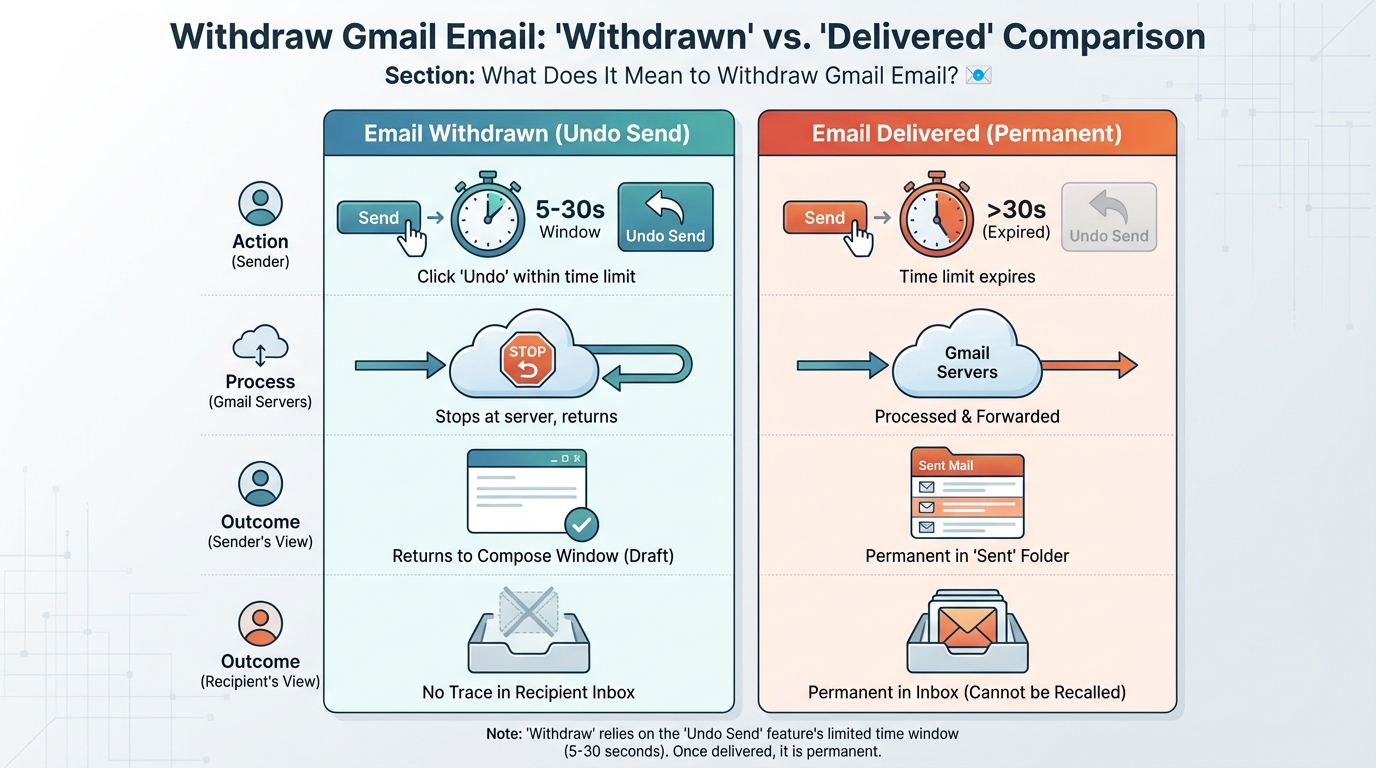
Withdrawing a Gmail email refers to the process of recalling or “unsending” a message after you’ve clicked the send button. This feature allows you to retrieve an email before it reaches the recipient’s inbox, giving you a brief window to correct mistakes, add missing attachments, or reconsider your message entirely.
Unlike traditional mail systems where sent means delivered, Gmail provides a configurable grace period during which you can reverse your action. This functionality is particularly valuable for:
- Sales professionals using cold email lead generation strategies who need to maintain perfect communication standards
- Marketing teams managing multiple campaigns simultaneously
- Business development representatives conducting high-stakes outreach
- Anyone who has experienced the panic of sending an email prematurely
The withdrawal feature works differently than email recall in other platforms. While services like log into hotmail email or my emails yahoo have their own recall mechanisms, Gmail’s approach is simpler and more reliable within its time constraints.
How Gmail’s Unsend Feature Actually Works
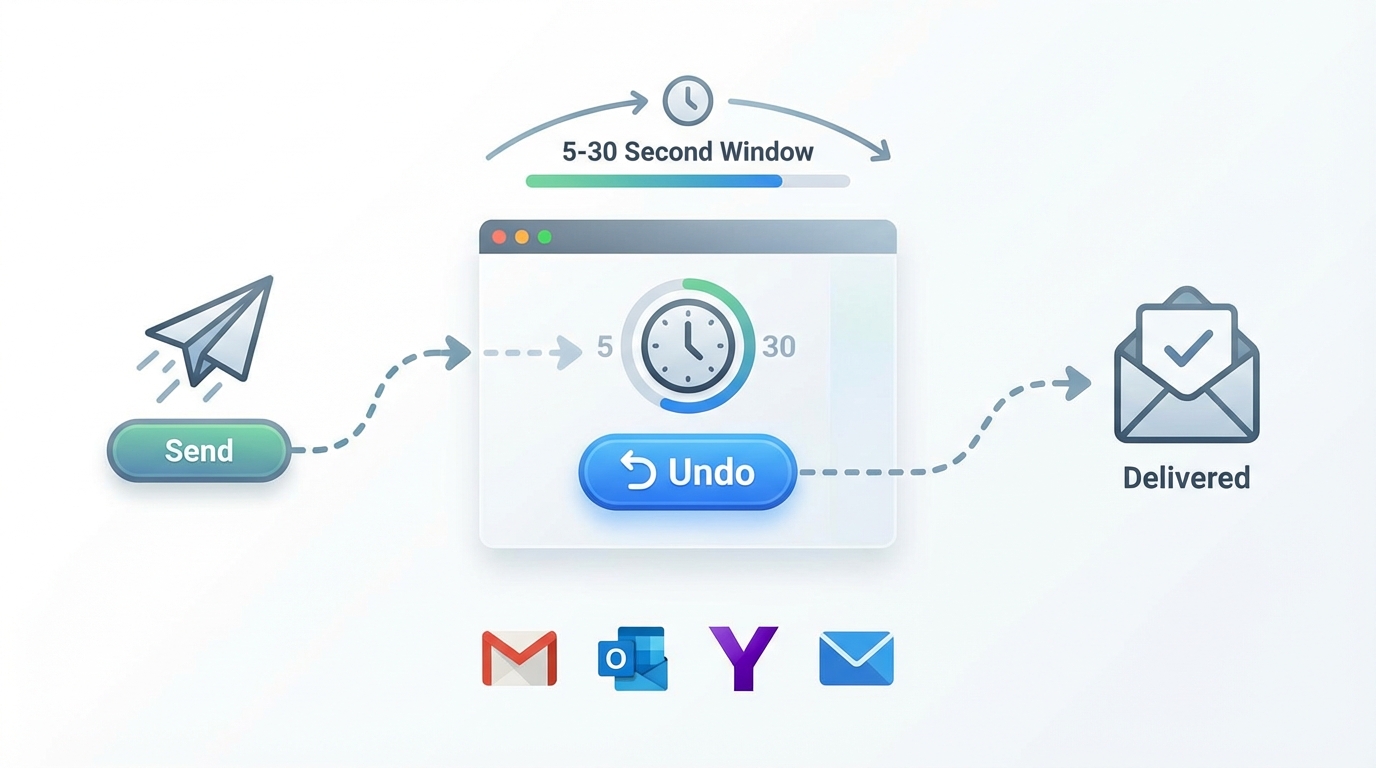
Gmail’s unsend feature operates on a delay mechanism rather than true email recall. When you send an email, Gmail holds the message on its servers for a predetermined period before actual delivery. During this window, you can cancel the send operation.
The Technical Process Behind Email Withdrawal
Understanding the technical mechanics helps you maximize the feature’s effectiveness. Here’s what happens behind the scenes:
- Send Delay Activation: When you click send, Gmail initiates a countdown timer instead of immediate delivery
- Server Holding Period: Your message remains on Gmail’s servers in a pending state
- Cancellation Window: During this period, you can interrupt the send process
- Final Delivery: Once the timer expires, the email is delivered normally
This system differs fundamentally from true email recall systems used in corporate environments. Unlike Exchange Server’s recall feature, Gmail’s approach is more reliable because it prevents delivery rather than attempting to retrieve already-delivered messages.
Configurable Time Windows
Gmail allows you to customize your unsend window to match your needs. The available options include:
| Time Window | Best For | Reliability |
|---|---|---|
| 5 seconds | Quick typo catches | High |
| 10 seconds | Standard use (default) | High |
| 20 seconds | Careful reviewers | High |
| 30 seconds | Maximum safety buffer | High |
For professionals managing crm inside sales activities or conducting extensive email outreach, the 30-second window provides maximum protection against errors while remaining practical for daily use.
Step-by-Step Guide to Withdraw Gmail Email Messages ✉️
Withdrawing a Gmail email is straightforward once you understand the process. Follow these detailed steps to recall your messages effectively.
Setting Up Your Unsend Window
Before you can withdraw emails, you need to configure your unsend settings properly:
- Open Gmail and click the gear icon in the upper right corner
- Select “See all settings” from the dropdown menu
- Navigate to the “General” tab
- Scroll down to find “Undo Send”
- Select your preferred cancellation period (5, 10, 20, or 30 seconds)
- Scroll to the bottom and click “Save Changes”
This configuration applies to all emails you send from that Gmail account, whether you’re managing a gmail email account create process for business or personal use.
Actually Withdrawing a Sent Email
Once you’ve sent an email and need to withdraw it, follow these immediate steps:
- Act Quickly: You only have your configured time window (maximum 30 seconds)
- Look for the Notification: A yellow banner appears at the bottom left saying “Message sent”
- Click “Undo”: Click the “Undo” button in the notification banner
- Email Opens in Draft: Your email reopens as a draft, preventing delivery
- Make Corrections: Edit your message as needed
- Resend or Delete: Either send the corrected version or discard the draft
This process works identically whether you’re sending from desktop, mobile, or using Gmail through third-party email clients that support the feature.
Mobile Device Considerations
Withdrawing emails from mobile devices requires slightly different attention:
- Faster Reflexes Needed: Mobile notifications disappear more quickly
- Tap Accuracy: Ensure you tap the “Undo” button precisely
- Network Delays: Poor connections may affect the unsend window
- App Updates: Keep your Gmail app updated for reliable functionality
For sales professionals conducting outreach campaigns similar to those managed through cold email automation tools, mobile email management is crucial for maintaining responsiveness while preserving accuracy.
Comparing Gmail Withdrawal with Other Email Platforms
Understanding how Gmail’s withdrawal feature compares to other email services helps you choose the right platform for your needs and manage multiple accounts effectively.
Gmail vs. Other Major Email Providers
Different email platforms handle message recall with varying degrees of success:
| Email Platform | Recall Method | Time Window | Reliability |
|---|---|---|---|
| Gmail | Send delay/prevention | 5-30 seconds | Very High |
| Outlook/Hotmail | Message recall (Exchange only) | Varies | Medium |
| Yahoo Mail | No native recall | N/A | N/A |
| AT&T Email | No native recall | N/A | N/A |
| ProtonMail | Send delay | Configurable | High |
Understanding Sign In for ATT Email and Other Services
When you sign in for att email or access my emails yahoo, you’ll notice these platforms lack Gmail’s sophisticated unsend functionality. This limitation makes Gmail particularly attractive for professionals who require reliable message control.
For users who need to log into hotmail email accounts, Microsoft offers email recall, but it only works under specific conditions:
- Both sender and recipient must use Microsoft Exchange within the same organization
- The recipient must not have read the email yet
- The email must still be in the recipient’s inbox (not moved to folders)
- The recall attempt may notify the recipient of your mistake
These restrictions make Gmail’s prevention-based approach significantly more reliable for general use.
Domain Email Services and Recall Features
Professional email services like godaddy and email hosting typically rely on the underlying email client for recall functionality. If you’re using a GoDaddy email account through Gmail’s interface, you can leverage Gmail’s unsend feature. However, accessing the same account through webmail or other clients may not provide this capability.
This consideration is crucial when deciding how can we write email communications effectively across different platforms and ensuring consistency in your professional correspondence.
Advanced Strategies for Email Management and Prevention 🎯
While knowing how to withdraw Gmail email is valuable, preventing the need to recall messages in the first place is even better. These advanced strategies help you maintain professional communication standards.
Implementing Pre-Send Checklists
Professional communicators, especially those managing crm inside sales pipelines, benefit from systematic email review processes:
- Recipient Verification: Double-check all email addresses before sending
- Attachment Confirmation: Verify all mentioned attachments are actually attached
- Link Testing: Click all links to ensure they direct to the correct destinations
- Personalization Review: Confirm merge fields and personalization elements are correct
- Tone Assessment: Read your email aloud to check tone and clarity
- Subject Line Accuracy: Ensure the subject line matches the email content
These checks are particularly important when conducting cold email campaigns similar to those discussed in guides about the best from line for cold emails.
Using Gmail’s Schedule Send Feature
Gmail’s scheduled sending provides an extended review window that complements the unsend feature:
- Compose your email as usual
- Click the dropdown arrow next to the “Send” button
- Select “Schedule send”
- Choose a delivery time (or set a custom time)
- Review and cancel scheduled emails before they send
This approach gives you hours or even days to reconsider your message, rather than just 30 seconds. It’s particularly valuable for important business communications where you want time to reflect before delivery.
Creating Email Templates for Consistency
Reducing errors starts with standardized communication templates. When you need to know how i make new email communications more reliable, templates provide the foundation:
| Template Type | Use Case | Error Reduction |
|---|---|---|
| Cold Outreach | Initial contact with prospects | High |
| Follow-up Sequences | Nurturing conversations | High |
| Meeting Confirmations | Scheduling communications | Medium |
| Response Templates | Common inquiries | Medium |
| Internal Updates | Team communications | Low |
Professional teams using cold email automation platforms often maintain extensive template libraries to ensure consistency and reduce the likelihood of errors that require message withdrawal.
Gmail Email Account Recovery and Management Best Practices
Understanding gmail email account recovery and proper account management helps prevent situations where you lose access to important communications or need to retrieve sent messages.
Setting Up Proper Account Security
Before you worry about withdrawing emails, ensure your account is properly secured and recoverable:
- Two-Factor Authentication: Enable 2FA for enhanced security
- Recovery Email: Add a backup email address for account recovery
- Recovery Phone: Link a mobile number for verification
- Security Questions: Set up memorable security questions
- Regular Password Updates: Change passwords periodically
These measures protect your ability to access and manage your sent emails, including those you might need to follow up on or reference after the unsend window has passed.
Gmail Email Account Create Considerations
When you gmail email account create for business purposes, configure your unsend settings immediately as part of your initial setup. This ensures protection from the first email you send.
For professionals managing multiple accounts or conducting outreach campaigns, consider these account creation best practices:
- Use professional naming conventions for business accounts
- Configure unsend settings to maximum (30 seconds) for business accounts
- Set up email signatures with accurate contact information
- Enable conversation view for better thread management
- Configure filters and labels for organized communication
Common Mistakes and How to Avoid Them 🚫
Even with the unsend feature available, certain mistakes can still cause problems. Understanding these common pitfalls helps you communicate more effectively.
Timing Errors That Prevent Successful Withdrawal
The most common mistake is simply reacting too slowly. Here’s how to improve your response time:
- Stay Focused: Don’t navigate away from Gmail immediately after sending
- Watch for the Notification: Keep your eyes on the bottom-left corner
- Avoid Distractions: Don’t send important emails when distracted
- Use Maximum Window: Configure the full 30-second unsend period
Recipient-Side Considerations
Understanding what recipients experience helps you make better decisions about email withdrawal:
| Scenario | Recipient Experience | Withdrawal Success |
|---|---|---|
| Withdrawn within window | Never receives email | 100% |
| Withdrawn after window | Email already delivered | 0% |
| Recipient using email client | May receive notification | Varies |
| Recipient has auto-forwarding | May receive forwarded copy | Partial |
Platform-Specific Limitations
Different email configurations affect withdrawal success. When sending to recipients using various platforms:
- Gmail-to-Gmail communications work perfectly within the time window
- Gmail to other providers (Yahoo, Outlook) also work reliably
- Corporate email systems may have different handling
- Mobile notifications might appear before withdrawal completes
For teams conducting extensive outreach campaigns, understanding these limitations is crucial for maintaining professional communication standards.
Professional Email Communication for Sales and Marketing Teams
For sales professionals and marketing teams conducting cold outreach, email withdrawal is just one component of effective communication strategy. Understanding the broader context helps you excel in your campaigns.
Integrating Unsend Features with CRM Systems
Modern crm inside sales systems often integrate with email platforms, but this integration can affect your ability to withdraw messages:
- Direct Integration: Some CRMs send emails directly, bypassing Gmail’s unsend feature
- BCC to CRM: BCCing your CRM preserves Gmail’s unsend functionality
- API Connections: Advanced integrations may or may not support unsend
- Manual Logging: Provides maximum control but requires more effort
When selecting email tools for your sales team, verify how they handle email sending and whether they preserve unsend capabilities.
Cold Email Campaign Best Practices
Professional cold email campaigns require meticulous attention to detail. Learning from resources like effective email phrases helps you craft messages that rarely need withdrawal:
- Thorough Research: Verify recipient information before sending
- Personalization Accuracy: Double-check all merge fields and personalized elements
- A/B Testing: Test email variations on small segments first
- Compliance Verification: Ensure all emails meet legal requirements
- Follow-up Sequences: Plan entire sequences before sending initial emails
Scaling Email Operations Safely
As your email volume increases, maintaining quality becomes more challenging. Professional teams managing high-volume campaigns need systematic approaches:
| Volume Level | Recommended Approach | Error Prevention |
|---|---|---|
| 1-50 emails/day | Manual review + unsend | High control |
| 51-200 emails/day | Templates + spot checking | Medium control |
| 201-1000 emails/day | Automation + quality systems | Systematic control |
| 1000+ emails/day | Enterprise automation | Process-driven control |
For teams operating at scale, platforms like Meetbound provide automation while maintaining personalization and quality control, reducing the need for frequent email withdrawals.
Troubleshooting Common Gmail Unsend Issues 🔧
Sometimes the unsend feature doesn’t work as expected. Here’s how to diagnose and resolve common problems.
Why the Undo Button Might Not Appear
If you don’t see the “Undo” option after sending an email, check these common causes:
- Settings Not Enabled: Verify your unsend window is configured in settings
- Browser Issues: Clear cache and cookies, or try a different browser
- Extension Conflicts: Disable browser extensions that might interfere with Gmail
- Outdated Browser: Update your browser to the latest version
- Mobile App Version: Ensure your Gmail app is updated
Network and Connectivity Problems
Poor internet connections can affect the unsend feature’s reliability:
- Slow Connections: May cause delays in displaying the undo notification
- Intermittent Connectivity: Can prevent the undo command from reaching servers
- VPN Issues: Some VPNs introduce latency that affects timing
- Mobile Data Limitations: Weak cellular signals may impact functionality
For professionals conducting business communications, maintaining reliable internet connectivity is essential not just for sending emails but for managing them effectively afterward.
Account-Specific Limitations
Certain account configurations may limit unsend functionality:
- Workspace Accounts: Administrators may disable or limit unsend features
- Legacy Accounts: Very old Gmail accounts may need settings updates
- Third-Party Access: Using Gmail through other email clients may bypass unsend
- API Sending: Emails sent via API may not support unsend
The Future of Email Withdrawal and Communication Control
Email communication continues evolving, and understanding emerging trends helps you stay ahead in professional communication.
Extended Recall Windows and Smart Features
Future developments in email technology may include:
- AI-Powered Error Detection: Automatic identification of potential mistakes before sending
- Extended Recall Periods: Longer withdrawal windows based on recipient behavior
- Smart Scheduling: AI recommendations for optimal sending times
- Sentiment Analysis: Warnings about potentially problematic tone or content
- Recipient-Based Rules: Different unsend windows for different contact categories
Integration with Business Communication Tools
As businesses increasingly rely on integrated communication platforms, email withdrawal features are becoming more sophisticated. Modern platforms are developing:
- Cross-platform recall capabilities that work across different email services
- Enhanced CRM integration that preserves unsend functionality
- Team-based approval workflows for sensitive communications
- Automated compliance checking before email delivery
- Advanced analytics on email sending patterns and error rates
These developments particularly benefit teams conducting extensive outreach campaigns, where maintaining perfect communication standards at scale becomes increasingly important.
Practical Tips for Different Professional Scenarios 💼
Different professional contexts require adapted approaches to email withdrawal and communication management.
For Sales Development Representatives
SDRs sending high volumes of personalized emails need specific strategies:
- Use the maximum 30-second unsend window for all business accounts
- Create a pre-send checklist specifically for personalization fields
- Test email templates with colleagues before using in campaigns
- Schedule important emails for review rather than immediate sending
- Maintain a swipe file of successful emails to reduce errors
For Marketing Campaign Managers
Marketing professionals managing large-scale email campaigns should:
- Always send test emails to internal addresses first
- Use staging lists for campaign testing
- Implement multi-person approval for major campaigns
- Schedule campaigns rather than sending immediately
- Maintain detailed documentation of campaign parameters
For Business Development Leaders
When conducting high-stakes outreach to potential partners or investors:
| Email Type | Recommended Approach | Review Level |
|---|---|---|
| Initial outreach | Schedule send + team review | High |
| Follow-up emails | Template + unsend buffer | Medium |
| Meeting confirmations | Immediate + unsend | Medium |
| Partnership proposals | Multiple reviews + schedule | Very High |
Conclusion: Mastering Gmail Email Withdrawal for Professional Success
Understanding how to withdraw Gmail email messages is an essential skill for modern professionals. While the unsend feature provides a valuable safety net, true email mastery comes from combining technical knowledge with systematic communication practices.
The key takeaways for effective email withdrawal and management include:
- Configure your unsend window to the maximum 30 seconds for business communications
- Stay alert immediately after sending important emails
- Implement pre-send checklists to reduce errors before they happen
- Use schedule send for high-stakes communications requiring extended review
- Maintain systematic approaches that scale with your email volume
Whether you’re managing crm inside sales activities, conducting cold outreach campaigns, or simply handling daily business correspondence, these strategies help you maintain professional communication standards while protecting against costly mistakes.
For teams looking to scale their email outreach while maintaining quality and control, professional automation tools provide the perfect balance. Meetbound’s cold email automation platform helps you personalize at scale, boost reply rates, and generate more qualified leads—all while maintaining the communication standards that protect your professional reputation. Ready to transform your email outreach? Visit our website to discover how automation and best practices combine to drive real results for your sales and marketing teams.
Article created using IntentRank