
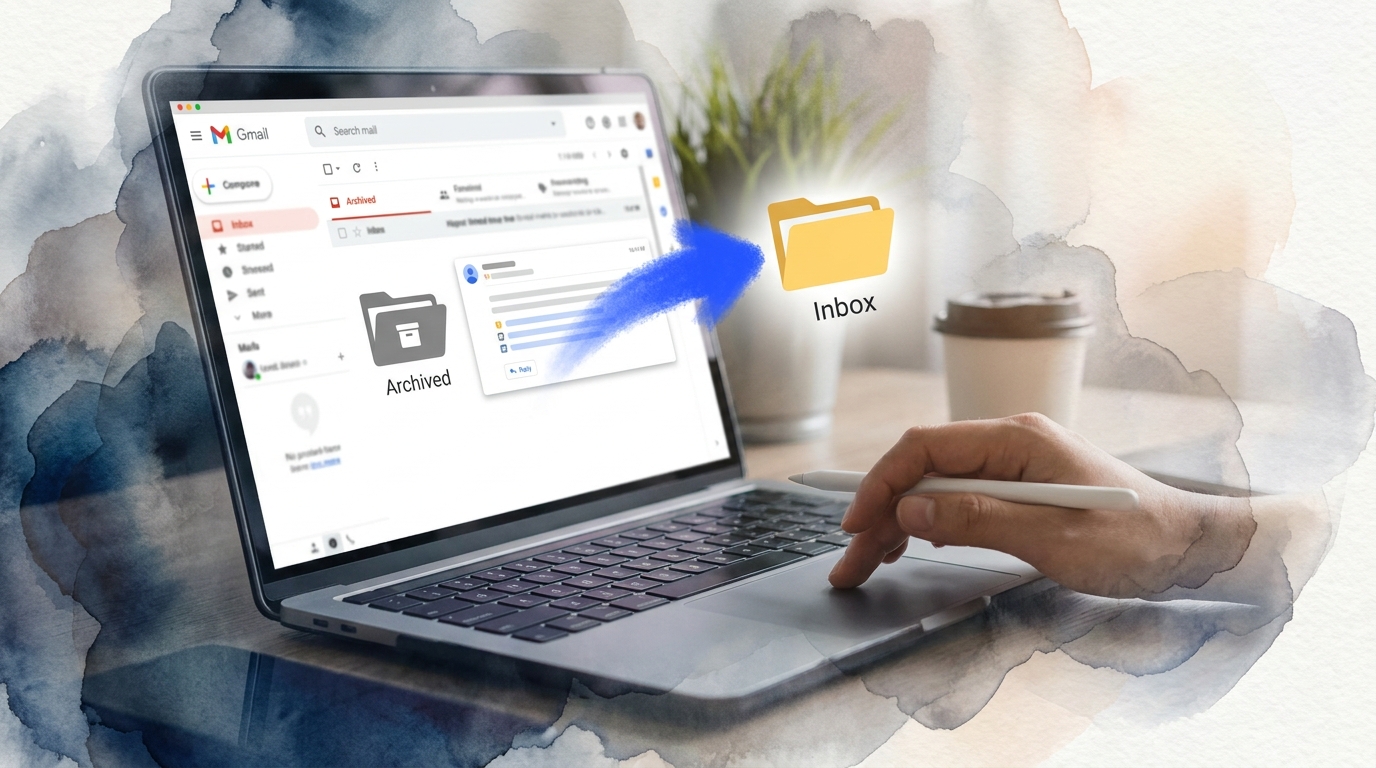
TL;DR: To unarchive an email in Gmail, open Gmail and click “All Mail” in the left sidebar. Find the archived email, open it, and click the “Move to Inbox” button at the top. Alternatively, search for the email, select it, and click the “Move to Inbox” icon to restore it to your primary inbox instantly.
Frequently Asked Questions

How do you unarchive an email in Gmail?
To unarchive an email in Gmail, open Gmail and click on ‘All Mail’ in the left sidebar. Find the archived email you want to restore, then click the folder icon with an arrow (Move to Inbox) at the top of the screen. The email will immediately return to your inbox. Alternatively, you can search for the email, open it, and click the same Move to Inbox icon.
Where do archived emails go in Gmail?
Archived emails in Gmail are removed from your inbox but not deleted. They’re stored in the ‘All Mail’ folder, which contains every email in your account except those in Trash and Spam. Archived messages still appear in search results and any labels you’ve applied to them. You can access All Mail from the left sidebar in Gmail.
Can you unarchive multiple emails at once in Gmail?
Yes, you can unarchive multiple emails simultaneously in Gmail. Go to ‘All Mail’ and use the checkboxes to select multiple archived emails. Once selected, click the ‘Move to Inbox’ icon at the top toolbar. All selected emails will be unarchived and returned to your inbox at once, saving time when restoring several messages.
What’s the difference between archiving and deleting emails in Gmail?
Archiving removes emails from your inbox but keeps them in your account under ‘All Mail,’ making them searchable and recoverable. Deleting sends emails to Trash, where they’re automatically deleted after 30 days. Archiving is ideal for decluttering your inbox while preserving important messages, whereas deleting is for emails you no longer need.
How do you find archived emails in Gmail on mobile?
On the Gmail mobile app, tap the menu icon (three horizontal lines) in the top-left corner. Scroll down and select ‘All Mail’ to view all your emails, including archived ones. You can also use the search bar at the top to find specific archived messages by sender, subject, or keywords.
Will archiving emails in Gmail free up storage space?
No, archiving emails in Gmail does not free up storage space. Archived emails remain in your account and count toward your Google storage quota. To actually free up space, you need to permanently delete emails by moving them to Trash and then emptying the Trash folder. Only deletion removes emails from your storage allocation.
Can you automatically unarchive emails in Gmail?
Gmail doesn’t have a built-in feature to automatically unarchive emails. However, you can create filters to prevent certain emails from being archived in the first place by applying the ‘Never send to Archive’ action. For automated email management and follow-ups, consider using cold email automation tools that integrate with Gmail for better workflow control.
How do you unarchive emails in Gmail using keyboard shortcuts?
First, enable keyboard shortcuts in Gmail Settings. Navigate to ‘All Mail’ and select the archived email you want to restore. Press ‘e’ on your keyboard to move the email back to your inbox instantly. This shortcut works for single or multiple selected emails, making it the fastest method for power users to unarchive messages.
Introduction: Mastering Gmail Archive Management

If you’ve ever wondered how do you unarchive an email in Gmail, you’re not alone. Gmail’s archive feature is a powerful organizational tool that helps keep your inbox clean without permanently deleting messages. However, many users accidentally archive important emails and struggle to retrieve them when needed. 📧
Understanding the archive and unarchive process is essential for maintaining an efficient email workflow, especially for sales teams, business development professionals, and anyone managing high-volume email communications. Whether you’re using Gmail for personal correspondence or managing complex outreach campaigns, knowing how to quickly access archived messages can save valuable time and prevent missed opportunities.
This comprehensive guide will walk you through multiple methods to unarchive emails in Gmail, explain the differences between archiving and deleting, and provide best practices for email management. We’ll cover desktop, mobile, and advanced search techniques to ensure you can always find and restore your archived messages.
Understanding Gmail’s Archive Feature

What Does Archiving an Email Actually Do? 🤔
Archiving in Gmail removes emails from your inbox view without deleting them permanently. The archived messages remain searchable and accessible in your “All Mail” folder, making it a safe way to declutter your inbox while preserving important communications.
This feature is particularly valuable for professionals managing multiple email accounts across platforms like email with att net or those who need to maintain organized communication records for crm inside sales activities.
Archive vs. Delete: Key Differences
| Action | Location After Action | Searchable | Recoverable |
|---|---|---|---|
| Archive | All Mail folder | Yes | Instantly |
| Delete | Trash (30 days) | Limited | Within 30 days only |
| Permanent Delete | Gone forever | No | No |
Understanding this distinction is crucial when managing multiple email accounts, whether you’re handling my emails yahoo or setting up a new gmail email account create process for your business.
How Do You Unarchive an Email in Gmail: Desktop Methods
Method 1: Using the All Mail Folder (Quickest Method) ⚡
The most straightforward way to unarchive emails on desktop involves accessing your All Mail folder. This method works for both individual messages and bulk unarchiving.
- Open Gmail in your web browser and sign into your account
- Locate the left sidebar and click on “More” if you don’t see all folder options
- Click “All Mail” to view every email in your account, including archived messages
- Find the archived email you want to restore using the search bar or by scrolling
- Select the email by clicking the checkbox next to it
- Click the “Move to Inbox” icon (folder with arrow) in the toolbar
- Confirm the action – the email will immediately return to your inbox
This method is particularly efficient for professionals managing high-volume communications, similar to techniques used when learning how can we write email campaigns that require organized follow-up tracking.
Method 2: Using Gmail Search to Locate Archived Emails 🔍
Gmail’s powerful search functionality makes finding specific archived emails incredibly efficient, especially when dealing with large volumes of correspondence.
Basic search approach:
- Type the sender’s name, subject line, or keywords in the Gmail search bar
- Press Enter to display all matching results, including archived messages
- Select the desired email and click “Move to Inbox”
Advanced search operators for archived emails:
-in:inbox– Shows emails not currently in your inbox (includes archived)from:sender@domain.com -in:inbox– Finds archived emails from specific senderssubject:"keyword" -in:inbox– Searches archived emails by subject lineafter:2024/01/01 -in:inbox– Finds archived emails after a specific date
Method 3: Unarchiving from Labels or Categories
If you’ve applied labels to emails before archiving them, you can access them through specific label views and restore them to your inbox.
- Click on the relevant label in the left sidebar (e.g., “Work,” “Important,” “Follow-up”)
- Locate the archived email within that label view
- Select the email and click “Move to Inbox”
This approach is especially useful for sales professionals tracking follow up email after sales call sequences who need to maintain organized communication threads.
Unarchiving Emails on Mobile Devices 📱
Unarchiving on Gmail Mobile App (iOS and Android)
The mobile unarchive process differs slightly from the desktop version but remains straightforward and user-friendly.
For iOS (iPhone/iPad):
- Open the Gmail app and tap the menu icon (three horizontal lines)
- Scroll down and tap “All Mail” to view archived messages
- Find and open the email you want to unarchive
- Tap the three-dot menu icon in the top right corner
- Select “Move to Inbox” from the dropdown menu
For Android devices:
- Launch the Gmail app and tap the hamburger menu
- Select “All Mail” from the folder list
- Long-press the email you want to unarchive (or open it)
- Tap the three-dot overflow menu
- Choose “Move to Inbox”
Quick Tips for Mobile Unarchiving
- Use search first: Instead of scrolling through All Mail, use the search function to quickly locate specific archived emails
- Bulk unarchiving: Long-press to select multiple emails, then use the Move to Inbox option
- Swipe gestures: Some Gmail mobile versions support custom swipe actions that can be configured for quicker archiving/unarchiving
Mobile email management is increasingly important for professionals who need access while traveling or working remotely, similar to managing sign in for att email accounts on the go.
Advanced Techniques for Email Recovery and Management
Recovering Accidentally Archived Emails Immediately ⏱️
Gmail provides an “Undo” feature that appears briefly after you archive an email. This yellow notification bar at the bottom of your screen offers a few seconds to reverse the action instantly.
To use the Undo feature:
- Watch for the yellow “Message archived” notification after archiving
- Click “Undo” within 5-10 seconds
- The email immediately returns to its original position in your inbox
Bulk Unarchiving Multiple Emails
When you need to restore multiple archived emails simultaneously, Gmail’s selection tools make the process efficient.
| Method | Steps | Best For |
|---|---|---|
| Individual Selection | Click checkboxes next to each email, then “Move to Inbox” | Specific emails (5-20) |
| Select All on Page | Click checkbox at top, then “Move to Inbox” | All visible emails (50-100) |
| Select All Matching | Use search, click “Select all conversations,” then move | Large batches (100+) |
Creating Filters to Prevent Unwanted Archiving
If certain emails are being automatically archived and you want them to always appear in your inbox, create a filter to override this behavior.
- Click the gear icon and select “See all settings”
- Navigate to the “Filters and Blocked Addresses” tab
- Click “Create a new filter”
- Specify criteria (from address, subject keywords, etc.)
- Choose “Never send it to Spam” and “Apply the label: Inbox”
- Click “Create filter”
This technique is valuable when managing multiple email platforms and ensuring important messages aren’t missed, whether you’re dealing with log into hotmail email or other services.
Common Issues and Troubleshooting
Can’t Find Archived Emails? Try These Solutions 🔧
Sometimes archived emails seem to disappear completely. Here are the most common causes and their solutions:
Issue 1: Emails were deleted, not archived
- Check your Trash folder (emails remain for 30 days)
- Use search with
in:trashoperator to find deleted messages - If within 30 days, select and click “Move to Inbox”
Issue 2: Emails are in a specific label folder
- Check individual label categories in the left sidebar
- Use search with
label:labelnameoperator - Remember that labels and folders can hide archived emails from All Mail view
Issue 3: Filters are automatically archiving emails
- Review your filters in Settings > Filters and Blocked Addresses
- Look for filters with “Skip the Inbox (Archive it)” action
- Edit or delete problematic filters
These troubleshooting steps are similar to processes used for gmail email account recovery when access issues arise.
Archived Emails Not Appearing in Search Results
If your search isn’t returning archived emails you know exist, try these approaches:
- Clear search filters: Remove any active filters that might be limiting results
- Check date ranges: Expand your search timeframe using
after:andbefore:operators - Search All Mail directly: Navigate to All Mail folder before searching
- Use exact phrases: Put search terms in quotes for precise matching
- Try alternative keywords: Search for sender names, domains, or related terms
Syncing Issues Across Devices
When unarchiving on one device doesn’t reflect on another, synchronization problems may be the cause.
Solutions for sync issues:
- Force refresh by pulling down on mobile or pressing Ctrl+R (Windows) or Cmd+R (Mac) on desktop
- Check your internet connection stability
- Sign out and sign back into your Gmail account
- Clear browser cache and cookies (desktop)
- Clear app data and cache (mobile)
- Ensure you’re using the latest version of the Gmail app
Best Practices for Gmail Archive Management 📊
When to Archive vs. Delete
Developing a clear strategy for email management improves productivity and ensures important communications aren’t lost.
Archive these emails:
- Completed projects or conversations you may need to reference later
- Receipts, confirmations, and transaction records
- Client communications and sales correspondence
- Newsletters and informational emails you’ve read but might need again
- Any email with potential future value or legal significance
Delete these emails:
- Spam and promotional emails with no value
- Duplicate messages
- Outdated information or expired offers
- Test emails and internal communications with no record-keeping value
- Emails with sensitive information after proper documentation
This strategic approach is essential for professionals managing outreach campaigns and learning how to respond to emails efficiently.
Organizing Archived Emails with Labels
Combining archiving with Gmail’s label system creates a powerful organizational structure that keeps your inbox clean while maintaining easy access to important messages.
| Label Category | Purpose | Archive Strategy |
|---|---|---|
| Clients | Customer communications | Archive after response, keep labeled |
| Projects | Project-specific threads | Archive when project phase completes |
| Follow-up | Requires future action | Don’t archive until action taken |
| Reference | Documentation and resources | Archive immediately after labeling |
| Completed | Finished conversations | Archive and review quarterly |
Setting Up Keyboard Shortcuts for Faster Workflow ⌨️
Gmail offers keyboard shortcuts that dramatically speed up email management, including archiving and unarchiving operations.
To enable keyboard shortcuts:
- Click the gear icon and select “See all settings”
- Scroll to “Keyboard shortcuts” section
- Select “Keyboard shortcuts on”
- Click “Save Changes”
Essential shortcuts for archive management:
- E – Archive selected email(s)
- G then A – Go to All Mail folder
- G then I – Return to Inbox
- Z – Undo last action (including archive)
- / – Focus on search box
- X – Select conversation
These efficiency improvements are valuable for anyone managing multiple accounts, whether you’re working with godaddy and email systems or standard Gmail accounts.
Integrating Archive Management with Business Workflows
Email Management for Sales and Outreach Teams 💼
For professionals conducting B2B outreach campaigns, proper email archiving becomes crucial for tracking communications, maintaining relationships, and ensuring follow-up consistency.
Sales teams using CRM inside sales tools should develop a systematic approach to archiving that aligns with their sales pipeline stages:
- Prospecting stage: Archive initial outreach after logging in CRM, label for follow-up timing
- Engagement stage: Keep active conversations in inbox, archive when awaiting response
- Negotiation stage: Archive supporting documents but keep primary threads accessible
- Closed deals: Archive all related correspondence with project-specific labels
- Lost opportunities: Archive with “Nurture” label for future re-engagement
Coordinating Multiple Email Accounts
Many professionals manage several email accounts simultaneously, requiring consistent archiving practices across platforms.
Whether you’re managing email with att net, Yahoo accounts, or multiple Gmail addresses, consider these coordination strategies:
- Use Gmail’s “Add account” feature to manage multiple addresses in one interface
- Apply consistent labeling systems across all accounts
- Set up filters that automatically label and archive based on account
- Create separate browser profiles or email clients for different business functions
- Use forwarding rules to consolidate important messages into a primary account
Archiving as Part of Email Compliance and Record-Keeping
For businesses with regulatory requirements or legal obligations, proper email archiving serves as essential documentation.
Compliance considerations:
- Understand your industry’s email retention requirements
- Never delete emails that may have legal or compliance significance
- Use labels to identify emails requiring long-term preservation
- Consider third-party archiving solutions for businesses with strict regulations
- Document your email management policies for team consistency
Advanced Gmail Features for Power Users
Using Multiple Inboxes with Archived Emails
Gmail’s Multiple Inboxes feature allows you to create custom panes that display specific email categories, including recently archived messages.
Setting up a “Recently Archived” pane:
- Go to Settings > Advanced and enable “Multiple Inboxes”
- In Settings > Inbox, configure Multiple Inbox settings
- Add a new pane with search query:
-in:inbox newer_than:7d - Name it “Recently Archived” for easy reference
- Position it below your primary inbox
This setup provides quick visual access to recently archived emails without leaving your inbox view, improving workflow efficiency.
Gmail API and Automation for Archive Management
Technical users can leverage Gmail’s API to create automated archive management systems that integrate with business tools and workflows.
Automation possibilities:
- Automatically unarchive emails when specific conditions are met
- Create custom dashboards showing archived email statistics
- Integrate archive actions with CRM systems and project management tools
- Build custom search interfaces for archived email retrieval
- Generate reports on email volume and archiving patterns
These advanced techniques are particularly valuable for teams managing large-scale outreach campaigns and needing sophisticated email tracking capabilities.
Third-Party Tools for Enhanced Archive Management
Several third-party applications extend Gmail’s native archive functionality with additional features:
- Boomerang: Schedule emails to return to inbox after archiving
- Sortd: Visual email organization with drag-and-drop archive management
- Clean Email: Bulk archive operations with advanced filtering
- Mailstrom: Analyze and manage archived emails by sender, size, or age
- SaneBox: AI-powered archiving based on importance patterns
When selecting tools, ensure they integrate well with your existing workflow and don’t compromise email security or privacy.
Mobile-Specific Archive Management Tips 📲
Optimizing Gmail Mobile for Quick Unarchiving
Mobile email management requires different strategies due to smaller screens and touch-based interfaces.
Mobile optimization tips:
- Add “All Mail” to your primary folder list for one-tap access
- Use voice search to quickly locate archived emails
- Configure notification settings to alert you before auto-archiving
- Enable conversation view for better context when unarchiving threads
- Use widgets to create shortcuts to frequently accessed archived folders
Managing Archives While Offline
Gmail’s offline capabilities allow limited archive management even without internet connectivity.
To enable offline access:
- Open Gmail on your computer in Chrome browser
- Click the gear icon and select “See all settings”
- Go to the “Offline” tab
- Check “Enable offline mail”
- Choose how many days of mail to sync (7, 30, or 90 days)
- Select whether to keep or delete offline data when signing out
Once enabled, you can search archived emails and move them to inbox while offline, with changes syncing automatically when you reconnect.
Creating an Email Management System That Works
The Zero-Inbox Philosophy with Strategic Archiving 🎯
Many productivity experts advocate for maintaining a zero-inbox approach, where archiving plays a central role in email management strategy.
Implementing zero-inbox with archiving:
- Process emails decisively: Read, respond, and archive or delegate immediately
- Use the two-minute rule: If response takes under two minutes, handle it now and archive
- Create action-based labels: “Waiting,” “To Read,” “Follow-up” for emails requiring future attention
- Schedule processing time: Batch-process emails 2-3 times daily, archiving completed items
- Trust your archive: Rely on search rather than keeping emails visible “just in case”
This approach is particularly effective for professionals managing complex communication workflows, similar to strategies used when learning sending an email with resume attachments professionally.
Weekly and Monthly Archive Maintenance
Regular archive maintenance prevents accumulation of unnecessary emails and ensures your system remains efficient.
Weekly maintenance tasks:
- Review “Follow-up” labeled archived emails for necessary actions
- Delete archived promotional emails older than 30 days
- Consolidate duplicate archived conversations
- Update labels on archived project emails as projects progress
Monthly maintenance tasks:
- Review archived emails from completed projects for potential deletion
- Export important archived emails for external backup
- Analyze archiving patterns to optimize filters and workflows
- Clean up label structure and merge redundant categories
Training Team Members on Archive Best Practices
For organizations, consistent email archiving practices across team members improve collaboration and information retrieval.
Training components to include:
- Clear guidelines on when to archive vs. delete
- Standard labeling conventions for different email types
- Demonstration of search techniques for finding archived emails
- Documentation of keyboard shortcuts and efficiency tips
- Regular refresher sessions on new Gmail features
These organizational practices are valuable whether your team is managing outsourced lead generation campaigns or internal communications.
Future of Email Archiving and Gmail Innovations
AI-Powered Archive Management 🤖
Gmail continues to evolve with artificial intelligence features that make archive management smarter and more automated.
Current and emerging AI features:
- Smart Reply: Suggests quick responses before archiving conversations
- Nudging: Reminds you about archived emails that may need follow-up
- Importance markers: Helps identify which archived emails to keep accessible
- Predictive archiving: Learns your patterns and suggests archive actions
- Automatic categorization: AI-driven labeling of archived emails
Integration with Productivity Ecosystems
Email archiving increasingly integrates with broader productivity tools and business systems.
Modern workflows connect Gmail archive management with:
- Project management platforms (Asana, Trello, Monday.com)
- CRM systems for sales tracking and lead management
- Document management systems for attachment archiving
- Communication platforms (Slack, Teams) for context preservation
- Analytics tools for email performance tracking
These integrations are particularly valuable for B2B sales reps who need comprehensive visibility across their communication channels.
Conclusion: Mastering Gmail Archive Management for Peak Productivity
Understanding how do you unarchive an email in Gmail is just one component of effective email management. By implementing the strategies, techniques, and best practices outlined in this guide, you can transform your inbox from a source of stress into a well-organized productivity tool. ✨
Whether you’re accessing Gmail on desktop, mobile, or across multiple devices, the ability to quickly locate and restore archived emails ensures you never miss important communications or opportunities. Combined with strategic labeling, smart filtering, and regular maintenance, Gmail’s archive feature becomes a powerful asset rather than a confusing obstacle.
For sales teams, business development professionals, and marketing specialists managing high-volume email communications, mastering these archive management techniques directly impacts your ability to nurture relationships, track conversations, and close deals efficiently. The time invested in setting up proper systems pays dividends through reduced email stress and improved response times.
Remember that email management is an ongoing process requiring regular refinement. As your communication patterns evolve and Gmail introduces new features, continue adapting your archiving strategies to maintain peak efficiency.
Ready to take your email outreach and management to the next level? Visit Meetbound to discover how our powerful automation tools can help you personalize at scale, boost reply rates, and generate more qualified leads faster. Transform your cold email campaigns with intelligent outreach solutions designed for modern B2B sales teams. 🚀
Article created using IntentRank